
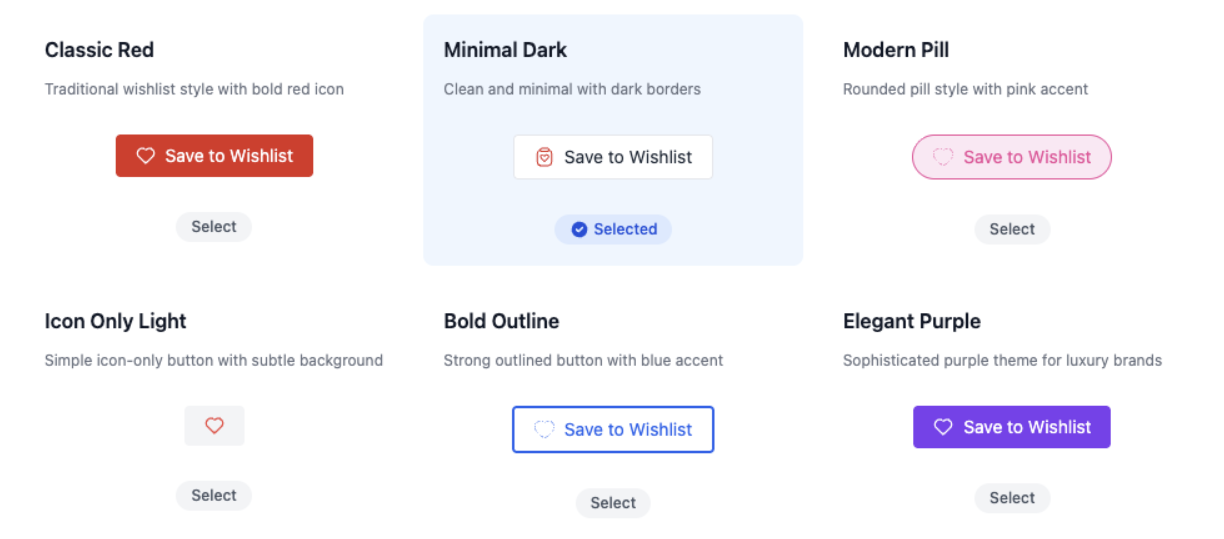
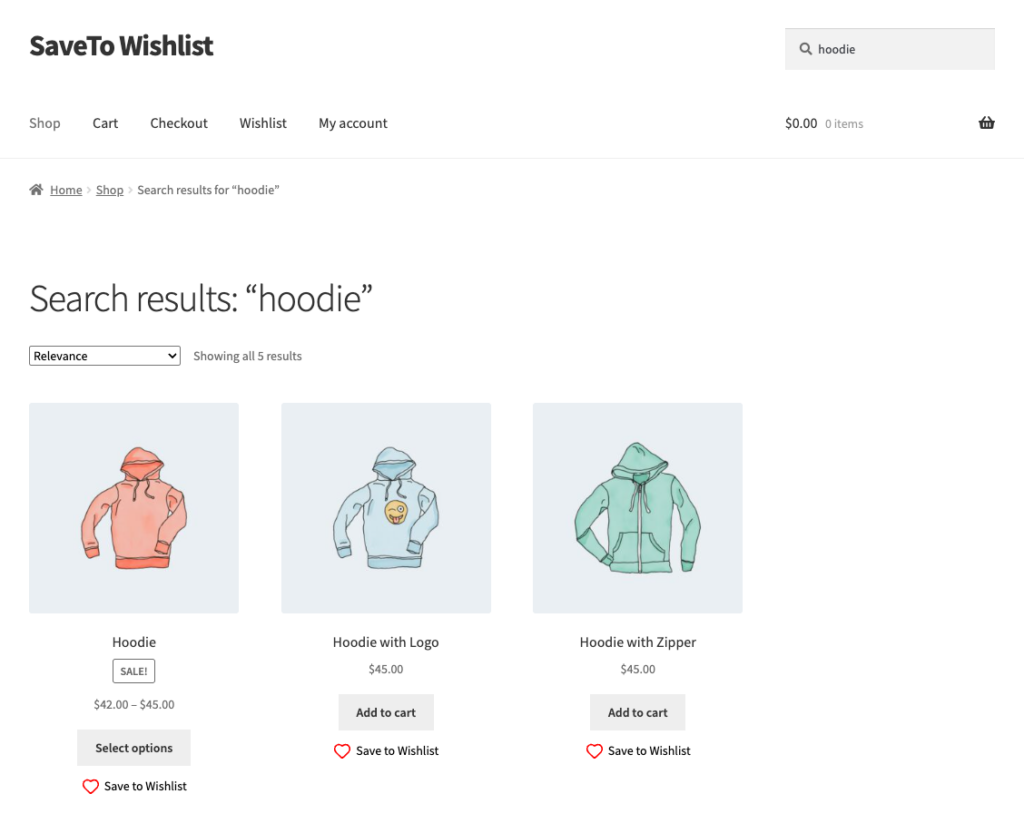
SaveTo Wishlist adds a “Save to Wishlist” button to WooCommerce products so customers can come back to them later. It works with Search & Filter out of the box, so shoppers can save products straight from filtered results.
We’ve tested SaveTo Wishlist with both Search & Filter and Search & Filter Pro, including with the indexer and live results turned on.
Note: SaveTo Wishlist is a third-party plugin. We’ve tested it and it works, but it isn’t one of our official integrations. For anything specific to SaveTo Wishlist, you can reach out to their support team.
Requirements
- WooCommerce
- Search & Filter or Search & Filter Pro
- SaveTo Wishlist (Lite or Pro)
Step 1: Set up Search & Filter on your shop
If you already have filters working on your shop, skip to Step 2.
Enable the WooCommerce integration
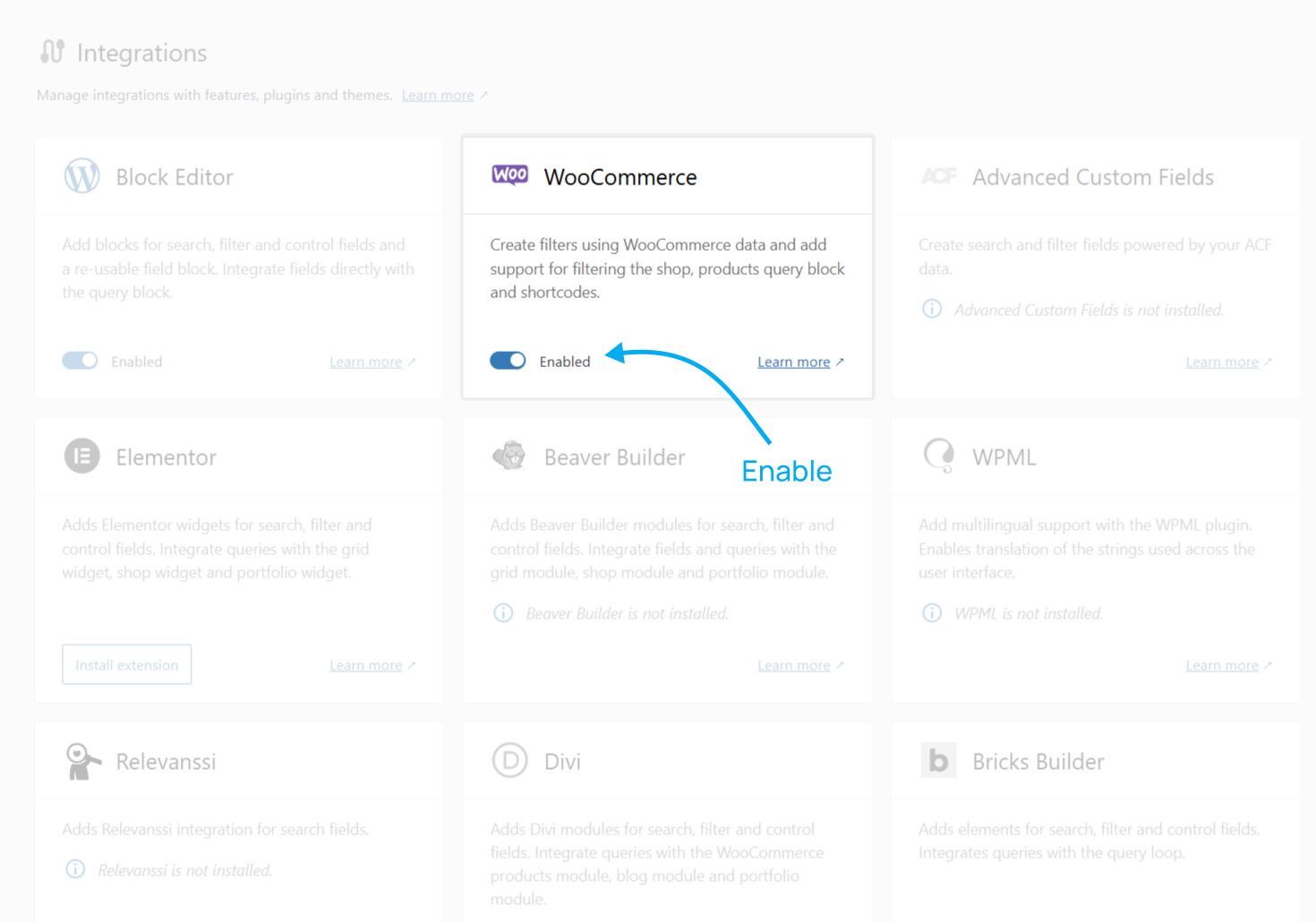
Go to wp-admin → Search & Filter → Integrations and make sure the WooCommerce integration is enabled.
Create a query
Go to Search & Filter → Queries → Add New and set the Location to WooCommerce Shop.

Using the [products] shortcode or a Product Collection block instead of the Shop page? That works too. See WooCommerce Overview for how to set up the query for those.
Add your fields
Add Fields with the Block Editor + FSE: click Edit Site in the admin bar and open the Shop template. Add Search, Choice, Range or Control field blocks, then check in the block settings that each field is connected to the query you just created.

Classic themes: create your fields under Search & Filter → Fields, then paste their shortcodes into the Shop page (Pages → Shop).

For more detail, see WooCommerce Shop.
SaveTo Wishlist shows the button on shop pages by default, so this is usually already done.
To check, go to SaveTo Wishlist → Settings → Button Placement & Styles and open the Shop Page section. Make sure Button Placement is set to any option except Don’t show.

The button on your filtered results uses the same style and placement you set here.
Step 3: Test it
- Open your shop page and apply a filter.
- Check that the wishlist button shows on each product in the results.
- Add a product to your wishlist, then reload the page. The product should still show as saved.
Troubleshooting
Check your query’s Location. The button needs WooCommerce’s product layout, so it won’t appear if the query uses the standard WordPress search results page. Use WooCommerce Shop, the [products] shortcode or a Product Collection block instead.
Go back to Step 2 and check that Button Placement isn’t set to Don’t show.
Still stuck? Contact us and let us know which display method you’re using.