
Beta
Let AI agents use your filters
- One step, not ten clicks. The agent sets every filter at once.
- Same results as a visitor. Agents search exactly like your visitors do.
- Nothing else changes. Other browsers work as before.
WebMCP (Beta)

Requires Search & Filter Pro
apply_search_filters_12
How It Works
WebMCP lets a page hand AI agents a set of tools. Search & Filter turns your fields into those tools, so an agent in your visitor’s browser filters your results directly instead of reading and clicking through the page. It’s a beta feature, off by default, and WebMCP itself is still a draft standard.
Reads the request
Turns a sentence into filter values.
inspect_search_filters
apply_search_filters
clear_search_filters
Offers filters as tools
Your fields, ready for an agent to use.
Filtered in one step
Visitors ask, the page shows the results.
Before You Start
Just want to try it? Test without tokens.
Requirements
| Requires | Version |
| Search & Filter + Search & Filter Pro | 3.3.0 or newer |
| Your site | HTTPS, and access to wp-config.php |
| Chrome | 149 or newer, with a trial token |
| Microsoft Edge | 150 or newer, with a trial token |
Where WebMCP Works
As of 17 November 2026:
| Browser | WebMCP |
| Chrome 149 or newer | Yes, with a trial token |
| Microsoft Edge 150 or newer | Yes, with a trial token |
| Brave Nightly | Yes, no token needed |
| Firefox | Not supported |
| Safari | Not supported |
💡Tokens are temporary. Both trials end on 30 March 2027, and tokens need renewing before then. See Renew Your Tokens below.
Setup in 4 Steps
Step 1: Turn On WebMCP
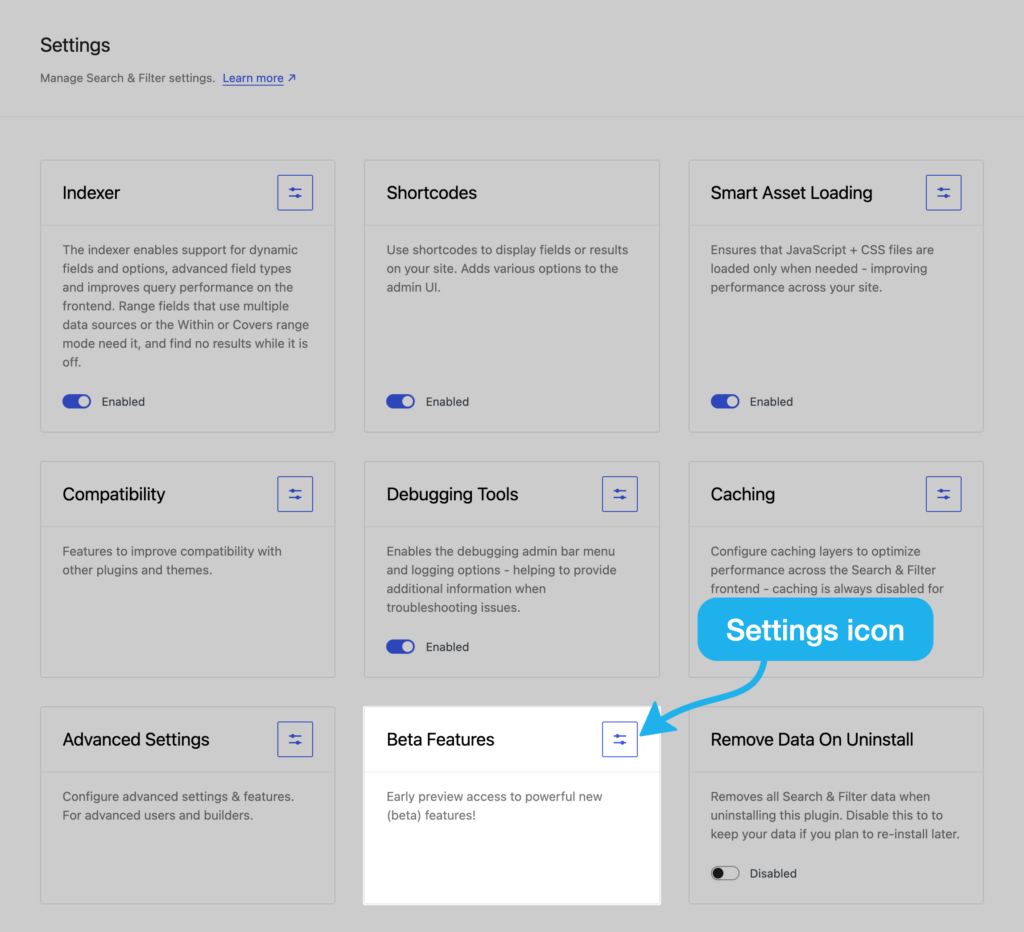
- Go to Search & Filter → Settings.
- On the Beta Features card, click the settings icon in the card’s header.
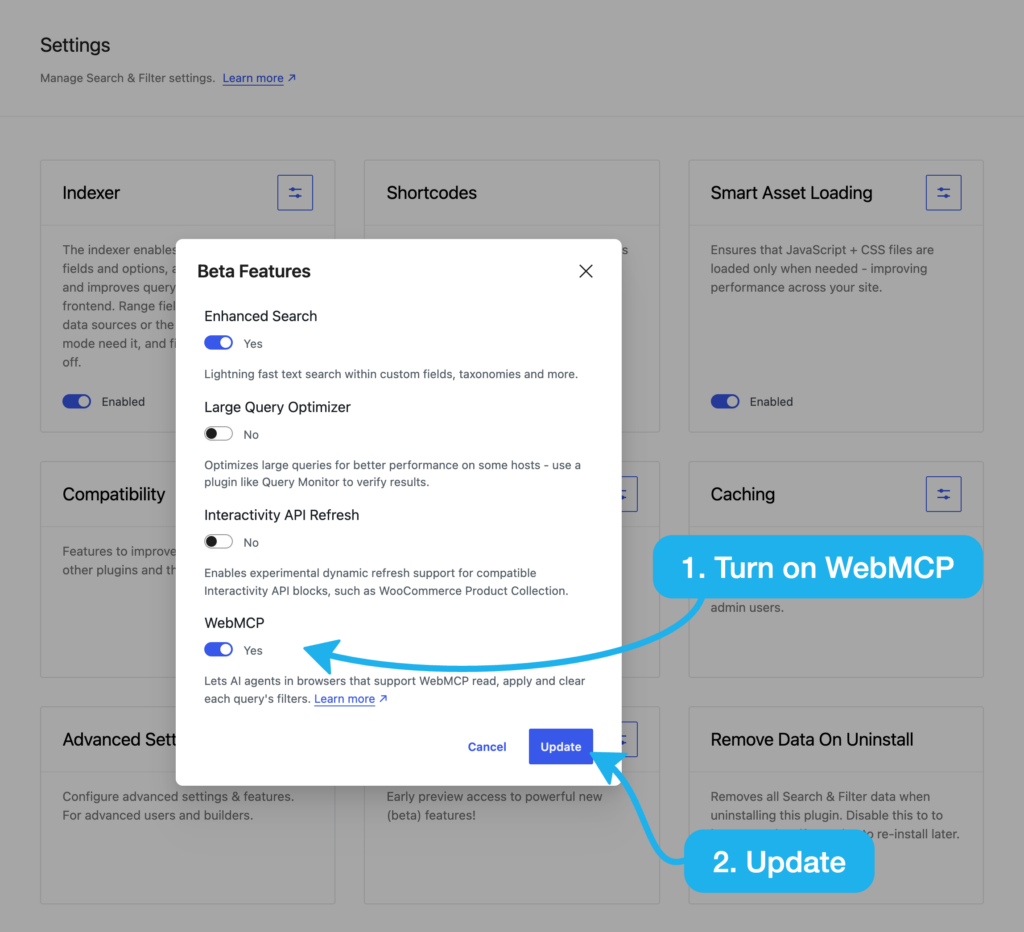
- Turn on WebMCP and click Update.
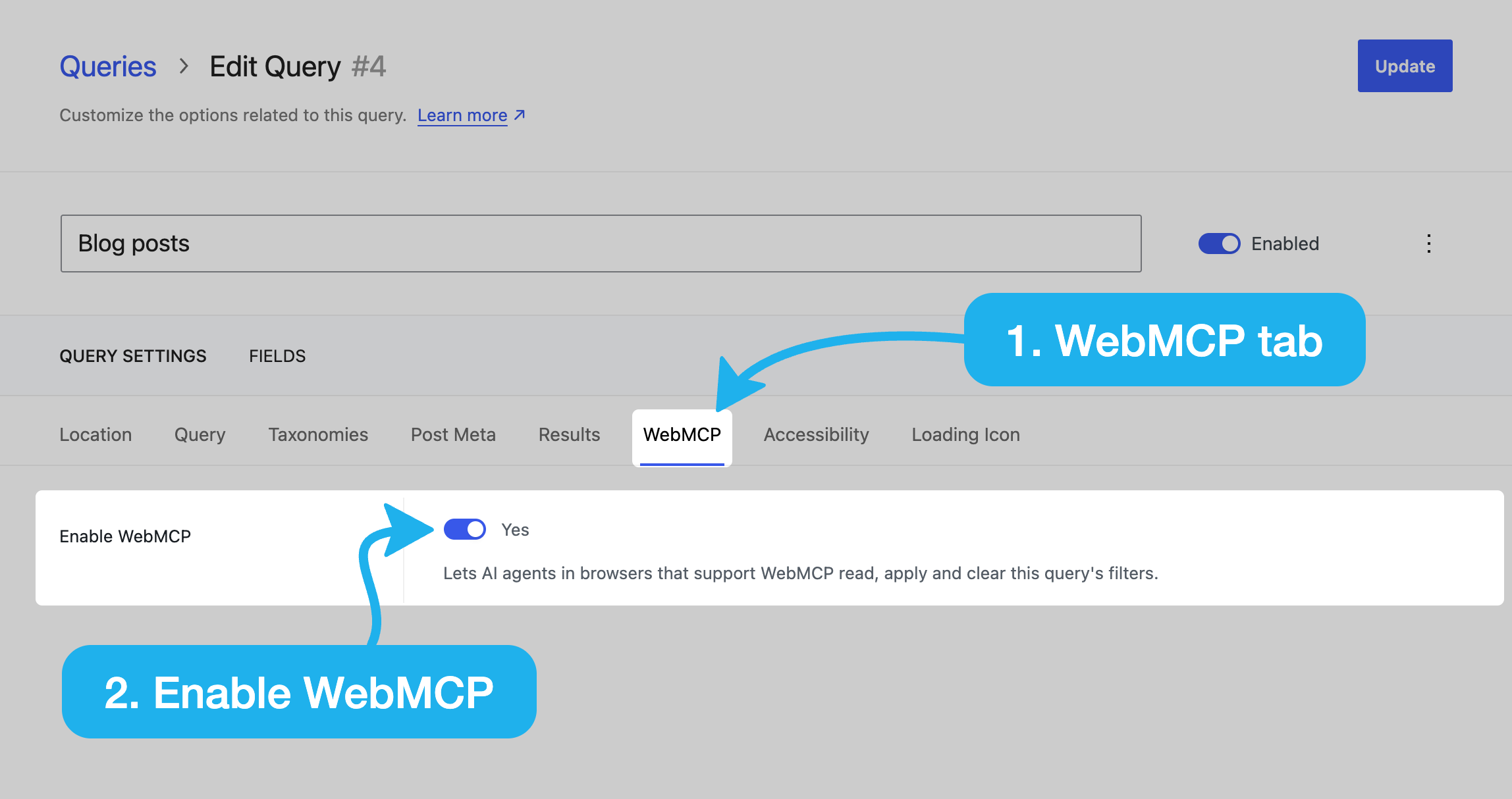
Each query also has an Enable WebMCP setting in the WebMCP tab of the query’s settings. It’s on by default and only shows when WebMCP is on. Turn it off for queries that agents shouldn’t use.
What changes on my site?
While WebMCP is on, Search & Filter adds your trial tokens to the <head> of every page, and loads a small script on pages that show a field of a query with Enable WebMCP on. A page with only a query’s results loads nothing new.
Step 2: Get Your Trial Tokens
Chrome and Edge only turn WebMCP on for sites registered in their origin trials. You register your site, get a token from each browser, and add both to your site in Step 3.
Before you start:
- Find your site’s origin: the Site Address (URL) in Settings → General, without any path. For example,
https://shop.example.org/bloghas the originhttps://shop.example.org. Awww.makes a different origin:https://example.netandhttps://www.example.netare separate origins, so use the one your site uses. - Leave third-party matching off in both forms.
- Turn on subdomain matching only if the token needs to cover subdomains, for example, both
example.comandwww.example.com.
Pick your browser
Get a token for each browser you want to support:
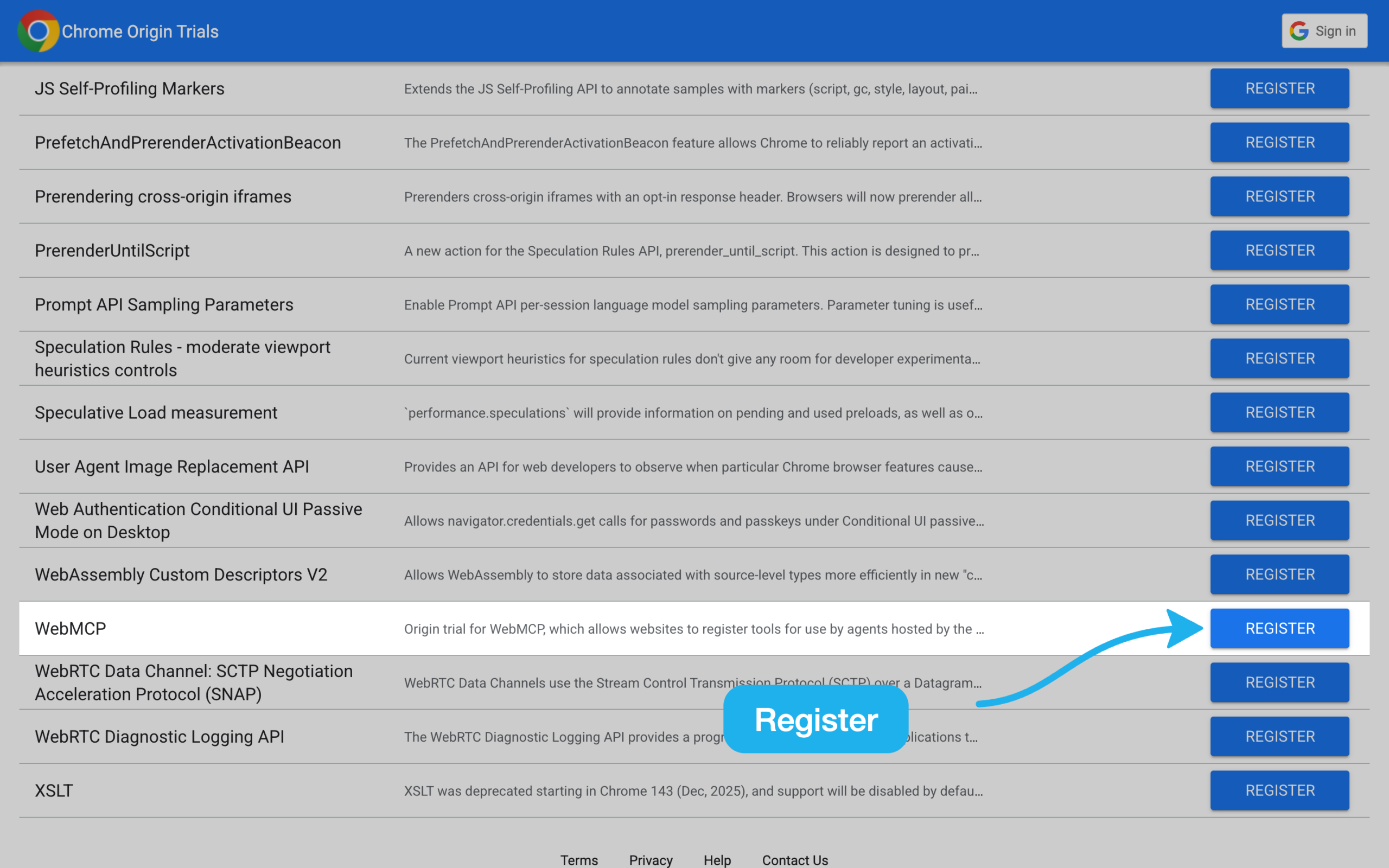
- Go to Chrome Origin Trials, find WebMCP in the Active Trials list, and click Register. Sign in with a Google account when asked.
- In Web Origin, enter your site’s origin.
- Leave third-party matching off.
- Complete the rest of the form, accept the terms, and submit it.
- Copy the token. You can find it again under My Registrations.
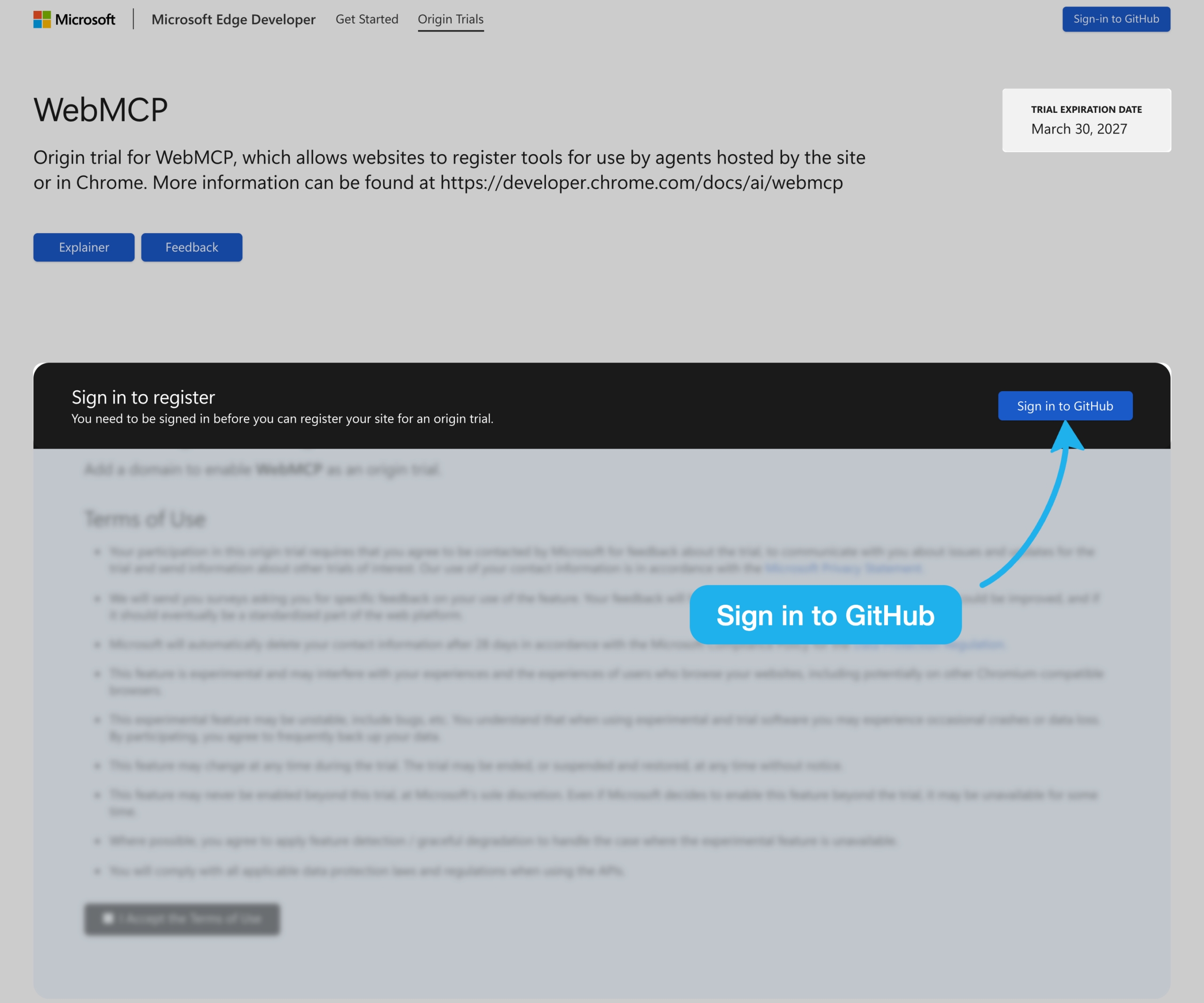
- Open the WebMCP trial in Microsoft Edge Origin Trials and click Sign in to GitHub. Then tick I Accept the Terms of Use.
- In Domain, enter your site’s origin.
- Leave Enable third-party matching? off.
- Click Submit.
- Copy the token with the Copy button in the Registrations section. Edge doesn’t email it, but it stays on the trial’s page.
Step 3: Add the Tokens
- Open
wp-config.phpin your WordPress folder. - Add the code below above the line that starts
/* That's all, stop editing! - Replace
<Chrome trial token>and<Edge trial token>with your tokens, inside the quotes. - If your site uses a page cache, clear it.
define(
    'SEARCH_FILTER_PRO_WEBMCP_ORIGIN_TRIAL_TOKENS',
    array(
        'chrome' => '<Chrome trial token>',
        'edge'   => '<Edge trial token>',
    )
);
Both tokens go in the same list: each browser ignores the token it didn’t issue. chrome and edge are only labels for you.
💡On a multisite network? One constant covers every site. See “Does it work on multisite?” in the FAQ.
Step 4: Check It Works
- Open a page with a Search & Filter query in Chrome or Edge.
- Open DevTools and run the check below in the Console.
truemeans the browser provides WebMCP on this page.falsemeans it doesn’t. See the FAQ below for more information.
'modelContext' in document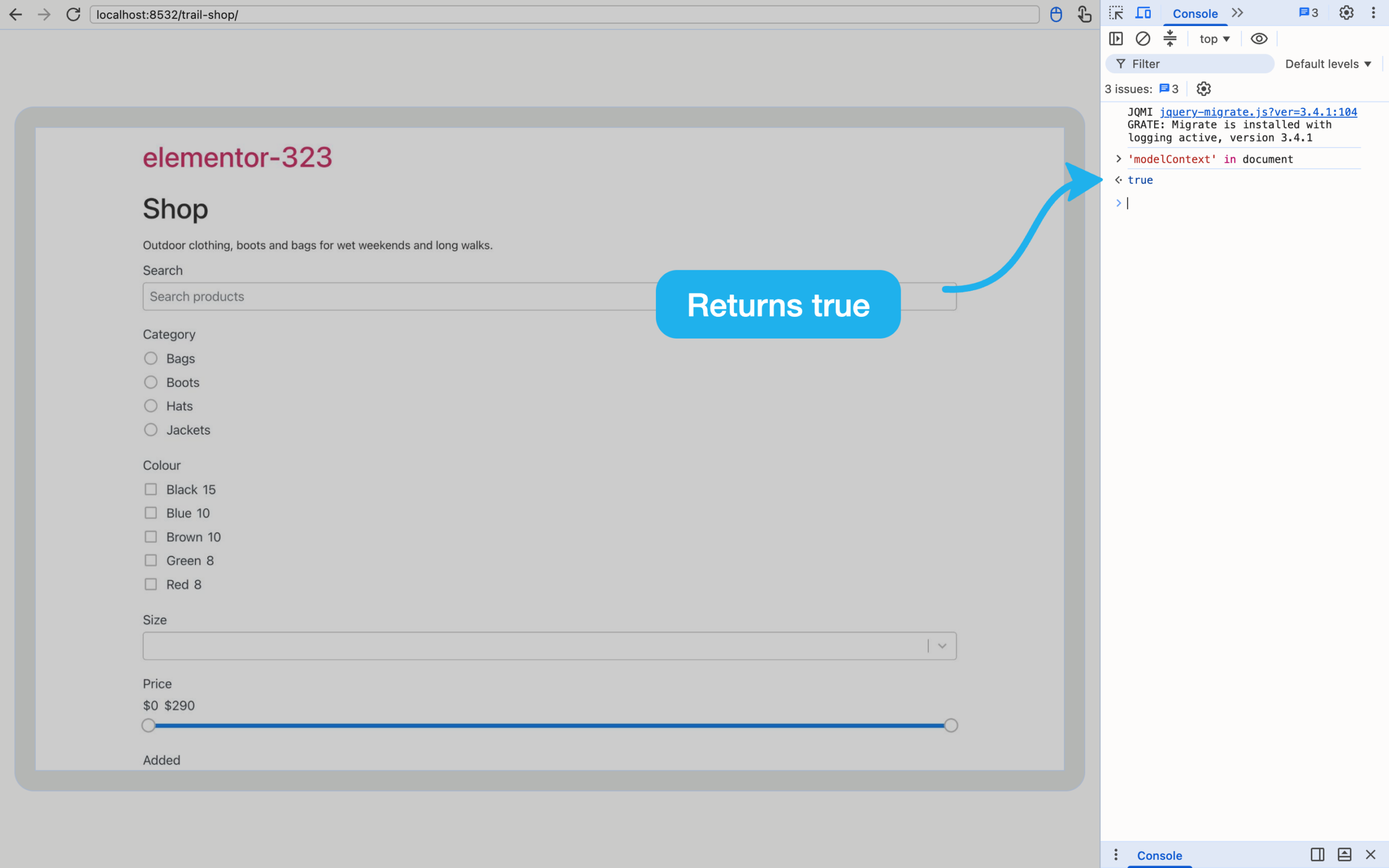
Try It With an Agent
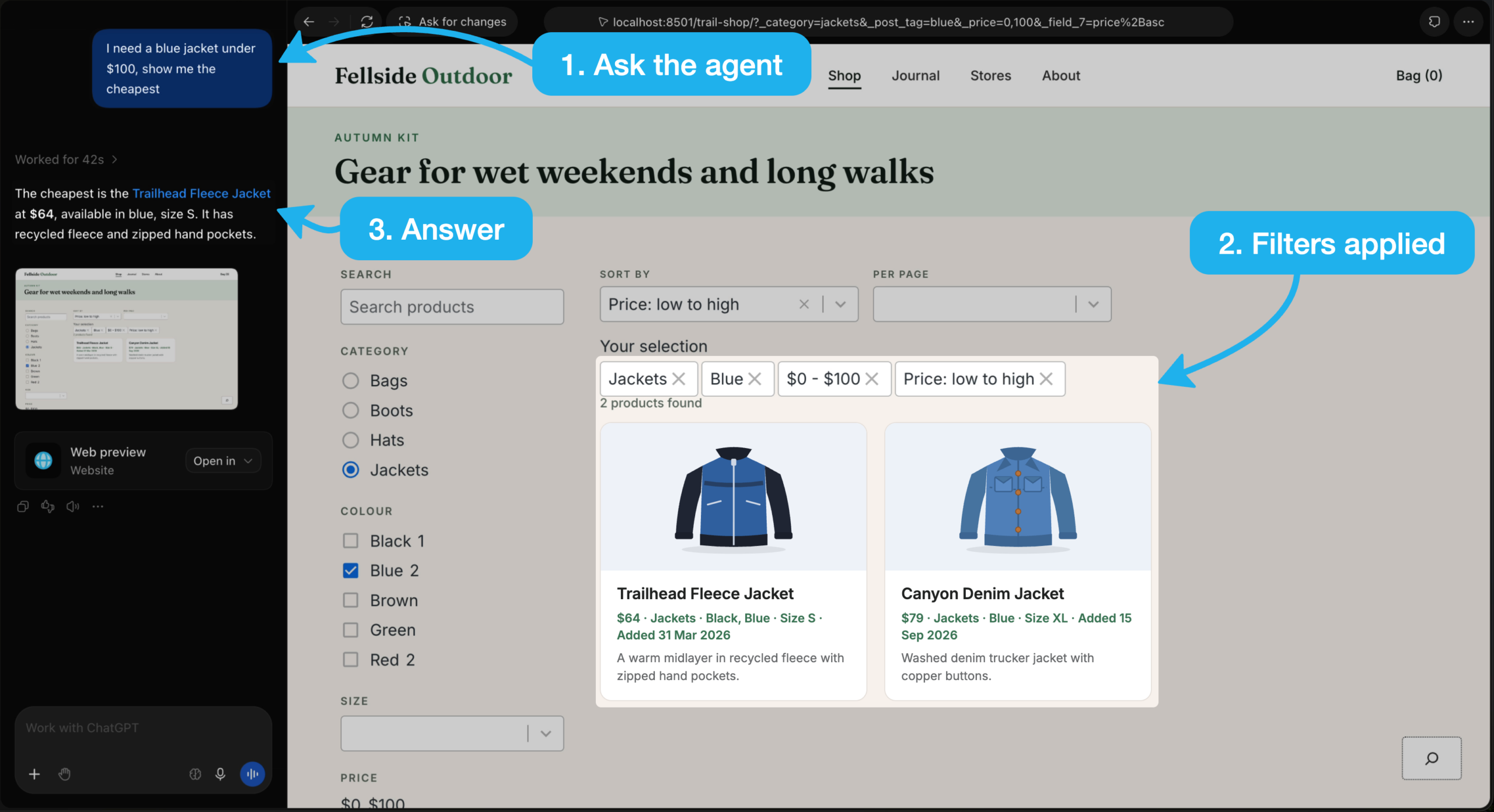
Open the page in an agent that calls WebMCP tools, such as the ChatGPT desktop app’s built-in browser, and ask for something your filters can answer:
- “I need a blue jacket under $100, show me the cheapest.”
- “I need size L boots under $100, show me the cheapest.”
- “What can I filter by on this page?”
- “Clear the filters and show me jackets in size M.”
Test Without Tokens
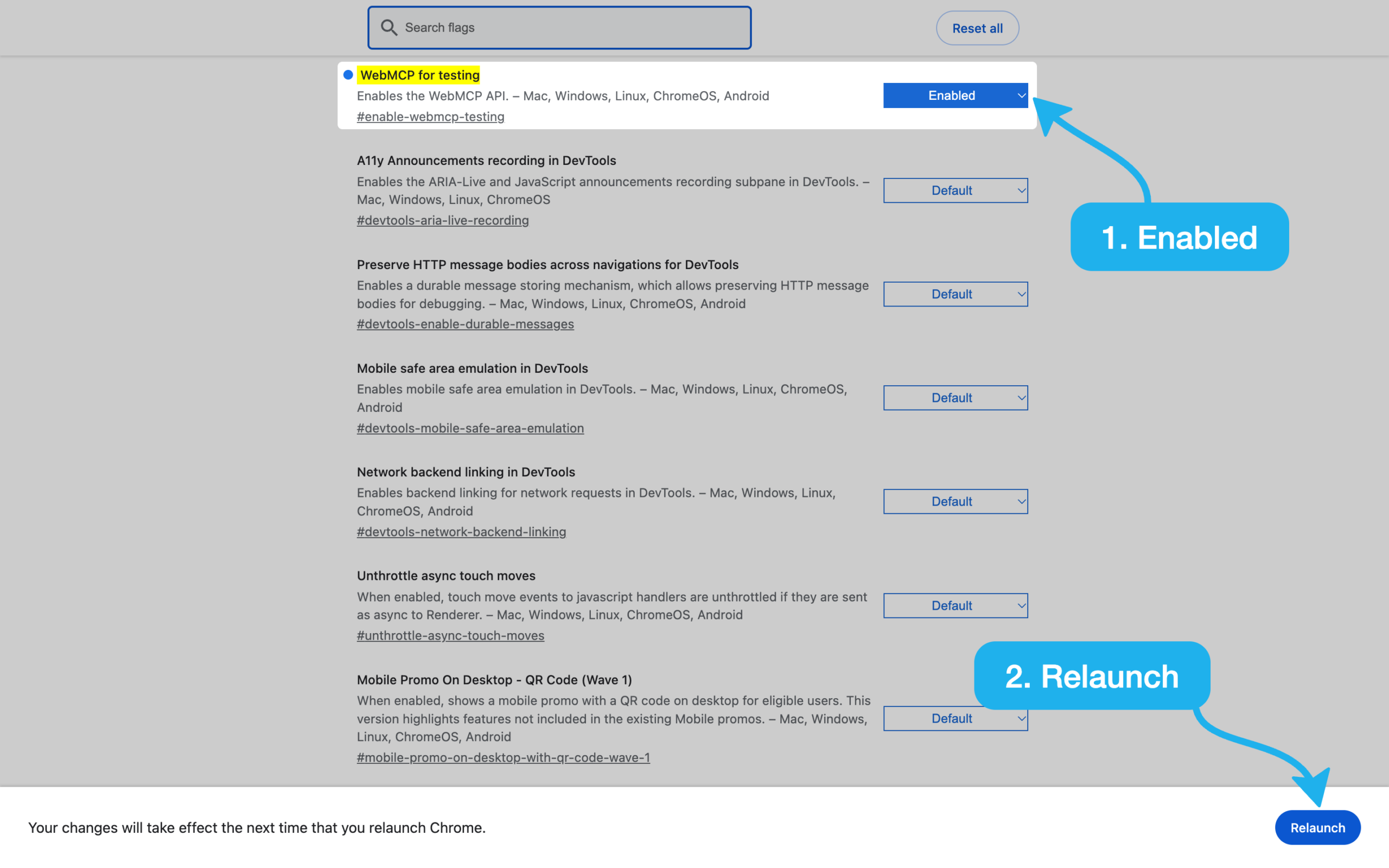
Chrome has a flag that turns WebMCP on for every site, with no token. Use it on a local or staging site.
- In Chrome, go to
chrome://flags/#enable-webmcp-testing. - Set WebMCP for testing to Enabled and relaunch Chrome.
- Turn on WebMCP in Search & Filter and open a page with a query. The console check above returns
true.
Note: WebMCP only works on secure pages: https:// sites and http://localhost. A local site on plain http:// under another name, for example http://mysite.test, doesn’t get WebMCP, even with the flag.
What the Agent Does
Without WebMCP, an agent has to read your page and click through it. With WebMCP it uses your filters directly.
Renew Your Tokens
Note: Tokens expire. When one does, that browser stops providing WebMCP on your site, and the tools don’t register. Your filters and results keep working as normal.
| Browser | When it expires | How to renew |
| Chrome | A registration is valid for six weeks at a time; My Registrations shows its Valid Until date. Tokens issued before 4 November 2026 expired on 17 November 2026. | Go to My Registrations, click Renew for your origin, answer the feedback questions, and copy the new token. |
| Edge | About 45 days after it’s issued. | In Microsoft Edge Origin Trials, select the WebMCP trial under My Registered Trials, click Renew on your token, and copy the new token. You can renew early, so set a reminder. |
After renewing, replace the old token in wp-config.php and clear any page cache.
FAQ
Which AI agents work with WebMCP today?
As of 17 November 2026
- the ChatGPT desktop app (ChatGPT Work and Codex),
- Brave Leo in Brave Nightly, Stagehand 4+ and Vercel agent-browser.
- Gemini in Chrome.
- Copilot Mode in Edge and Claude in Chrome don’t call WebMCP tools yet.
Do agents see different results from visitors?
No. The agent’s search sends the same request as a visitor’s, so it gets the same results.
Can agents use filters that aren’t on the page?
No. Agents only get the fields the page shows. A filter applied from a link, with no field on the page, isn’t available to them.
Are there any known limits?
There are currently two known limits:
- If fields in two queries on a page share a URL name, an agent’s change to one changes the other too, as a visitor’s does. To work around this limitation, give one its own URL Name in the field’s settings.
- If an agent cancels a call while the results load, the filters keep showing the agent’s values without applying them.
Does it work on multisite?
Yes. The constant in wp-config.php covers the whole network, so list each site’s tokens under their own keys, e.g. chrome-shop and edge-shop. A subdomain network needs one token per trial for the main domain, with subdomain matching on.
A subdirectory network shares one token per trial. A site with its own domain needs its own tokens. Each site has its own WebMCP setting.
The console check returns false. Why?
View the page source and search for origin-trial. Then open DevTools, go to the Application panel, and select the top frame under Frames. The token from this browser’s trial should show Success. The other browser’s token showing InvalidSignature or Malformed is expected.
My token shows WrongOrigin. Why?
The token was issued for a different origin than the page’s. Check www or not, staging or production, and HTTP, HTTPS or a port. A token registered with third-party matching on also shows WrongOrigin. To resolve this issue, register for a trial token again with third-party matching off.
On multisites, the other sites’ tokens show WrongOrigin, which is expected.
My token shows Expired or Insecure. What do I do?
Expired: you’ll need to renew it. See the Renew Your Tokens section above.
Insecure: the page isn’t served over HTTPS, and trial tokens only work on HTTPS pages.
Why are there no tokens on my page?
Check that WebMCP is turned on under Beta Features, and that the constant is above the “That’s all, stop editing!” line in wp-config.php. Then clear your page cache and any cache on your host or CDN.
WebMCP works, but the agent sees no tools. Why?
Check the query’s Enable WebMCP setting. If your admin shows the notice “Complete the v3.2.0 Upgrade – frontend assets need to be updated”, click Fix Now. The WebMCP script doesn’t load until the upgrade is complete.
Can the agent move to the next page of results?
With Load More, yes. With Normal pagination, the tools don’t change the page; the agent is told the other pages are behind the pagination links. Infinite scroll gets no tool.
Can I turn WebMCP off for one query?
Yes. Open the query’s WebMCP tab and switch Enable WebMCP off.
For developers: turn WebMCP off per request
A query’s Enable WebMCP setting is its webMcp attribute, yes or no. To change it per request, use the search-filter/queries/query/get_attributes filter, e.g. to keep WebMCP to WooCommerce’s shop page:
add_filter( 'search-filter/queries/query/get_attributes', function ( $attributes ) {
    if ( ! ( function_exists( 'is_shop' ) && is_shop() ) ) {
        $attributes['webMcp'] = 'no';
    }
    return $attributes;
} );
For Developers
Each query registers these tools for the fields the page renders, where <queryId> is the query’s ID. Tool names, responses, and schemas may change while WebMCP is in beta.
| Tool | What it does |
inspect_search_filters_<queryId> | Returns each filter’s current value, its options with result counts and the result summary. Changes nothing. |
apply_search_filters_<queryId> | Sets one or more filters with one results update. merge changes only the filters given; replace also clears every other filter. |
clear_search_filters_<queryId> | Resets every filter, including sort and per page, as the Reset button does. Needs the query’s Reset field on the page. |
load_more_search_results_<queryId> | Adds the next page of results, as the Load More button does. Needs the query’s Load More field and live search. |
A field with no element on the page, for example, one applied only from the URL, isn’t a filter. The tools don’t list it, and apply refuses it, though its value still narrows the results. Each tool’s description names the query by its ID and name.
Responses
Applyandclearreturn the filters that have a value, the result summary, the region of the page that holds the results and its text, and the page’s address after the call (url).inspectreturns every filter with its options and their result counts.- Result summary – the result count, how many results are on the page (with Load More, those loaded so far), the pages, and one sentence, for example, “13 results; 12 are on the page (pages 1 to 2 of 3); load more for the rest.” or “No results.”
resultsText: the text a visitor sees in the results, from the posts container when it’s set and on the page, otherwise the query container, up to 4,000 characters. It doesn’t say which text belongs to which result; for links, an agent reads the region on the page.- Errors: a tool resolves with
{ ok: false, code, message, retryable }for invalid input (e.g.,invalid_filter_value, with the valid options) and failed requests (e.g.,request_failed). It rejects only when its call is canceled. - Navigation: when results load in a new page, for example, a query without live search, apply and clear resolve with
status: "navigating", then the page loads.
Input schema and options
- The
applytool’s schema lists each filter by key with its label and type, the options of choice, sort and per page filters (at most 200;inspectlists the options of a larger one), and each range’s step and decimals. - When a results update changes those options, for example the indexer hides an empty option, the page registers the
applytool again under the same name. A change of order alone doesn’t.
Ranges, hierarchical checkboxes and dates
- Ranges are set only to values the control can show. For example, the current minimum or maximum, or the minimum plus a whole number of steps. Other values are rounded outward so the range keeps every result asked for: “under 95” on steps of 10 applies a maximum of 100. Apply lists each change in
adjusted, with a note. - A range that no result can match, for example a minimum above the current maximum, is refused.
- A range with no values in the current results shows 0 to 0.
Applytakes only its current value ornullfor it, and rejects other values withfilter_unavailable. - A select or radio range shows only its first 200 options and its maximum.
- Hierarchical checkbox with Tri-state on – a parent option sent without its children also gets the options under it, as a click does, and
adjustedlists them. - Date range: takes both dates, as the picker does. If an agent sends one, the error says what to send for the open end.
Notes
- Search & Filter registers the tools only when
document.modelContextexists, not the oldernavigator.modelContextof Firefox’s prototype. - Search & Filter doesn’t check the tokens; the browser does when it loads the page. It adds every token in the list as a
<meta http-equiv="origin-trial">tag. - The current draft specification is at webmachinelearning.github.io/webmcp.