
Search & Filter Pro 3.3 lets Range fields read a start value and an end value from two data sources (e.g. age_min and age_max), and adds a Date Range Picker field for items with start and end dates – events, courses, rentals.
Use it when your posts or products store a range instead of a single value:
- Age range – a book for ages 3–6 (age_min and age_max).
- Capacity or size – a venue that seats 50–200.
- Event dates – a course running from 4th to 8th of November.
- Availability – a rental available from June until September.
Note: Range fields and the Date Range Picker are Pro-only. Start and end values need a query with the indexer enabled. These fields filter products and posts on the front end, not WooCommerce orders.
Enable the Indexer
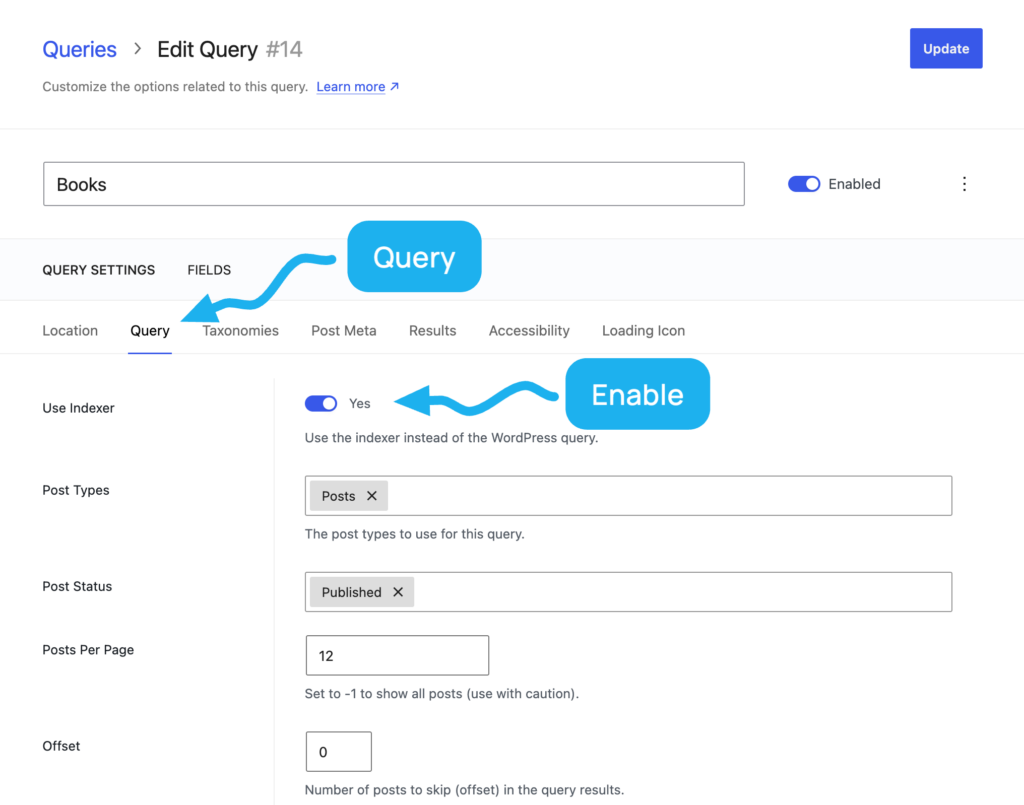
Head to Queries, open your query and go to the Query tab. Set Use Indexer to Yes and save.
Create a Range Field
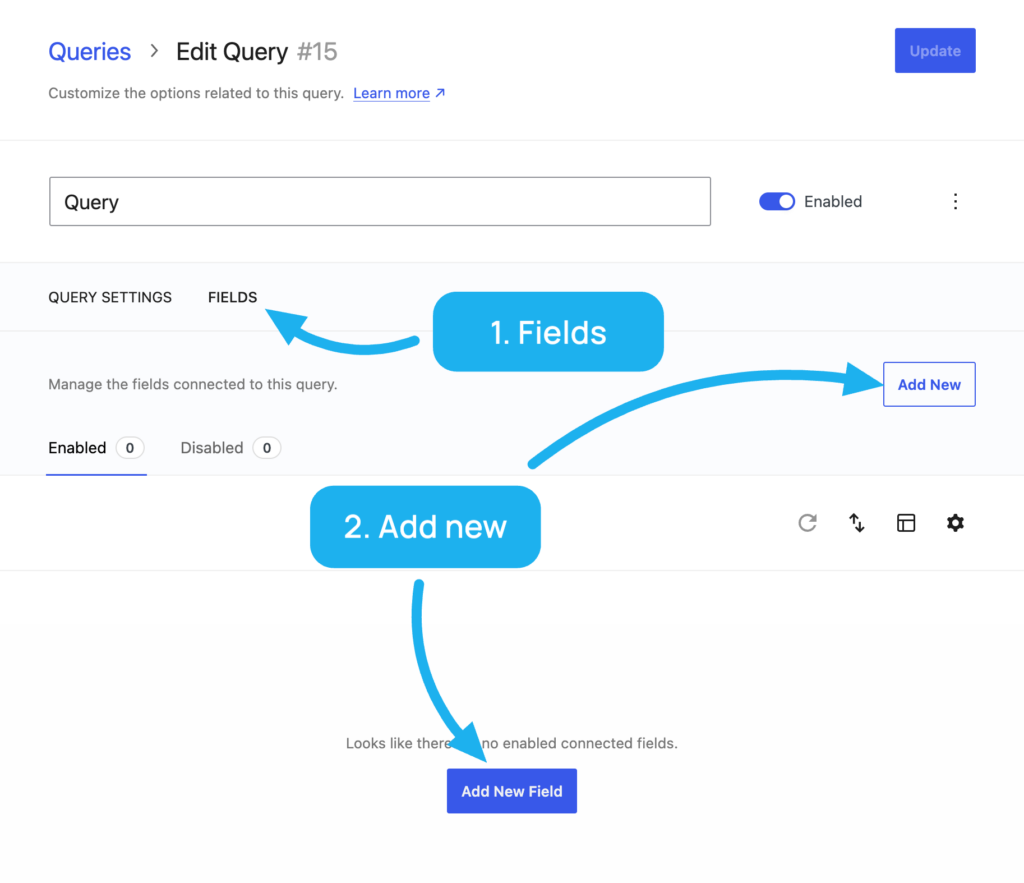
Head to Fields and press Add New.
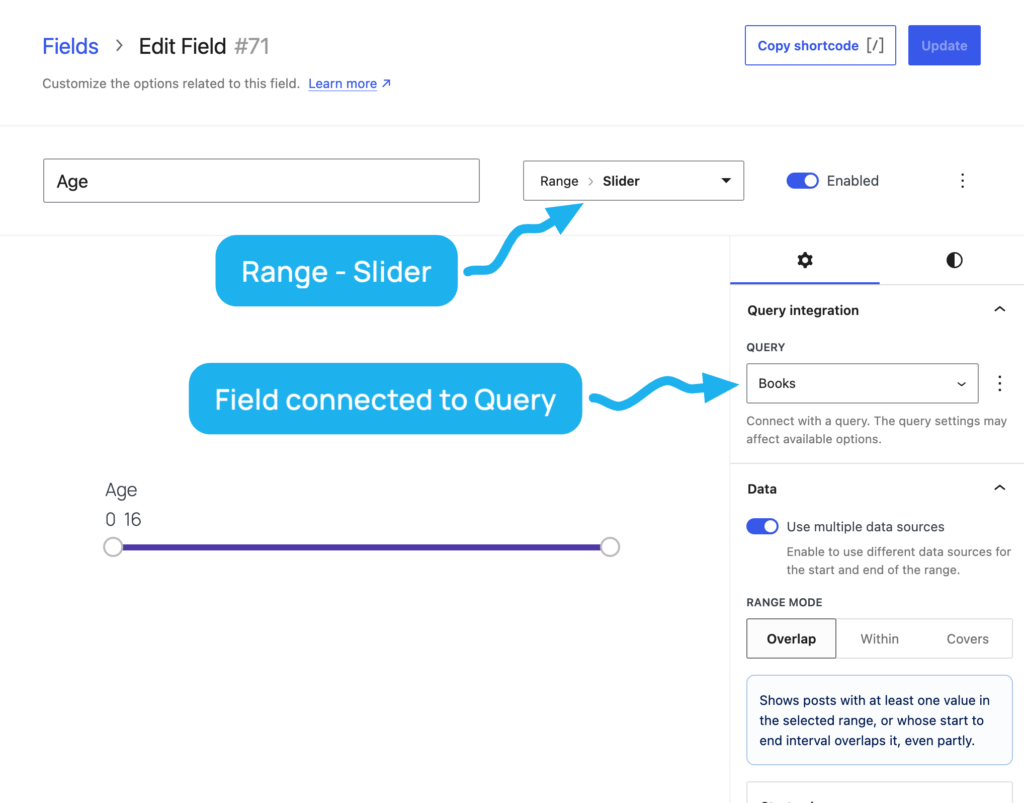
Choose the Range field type and an input type, like Slider.
Make sure the field is connected to the query from the previous step.
Enable Multiple Data Sources
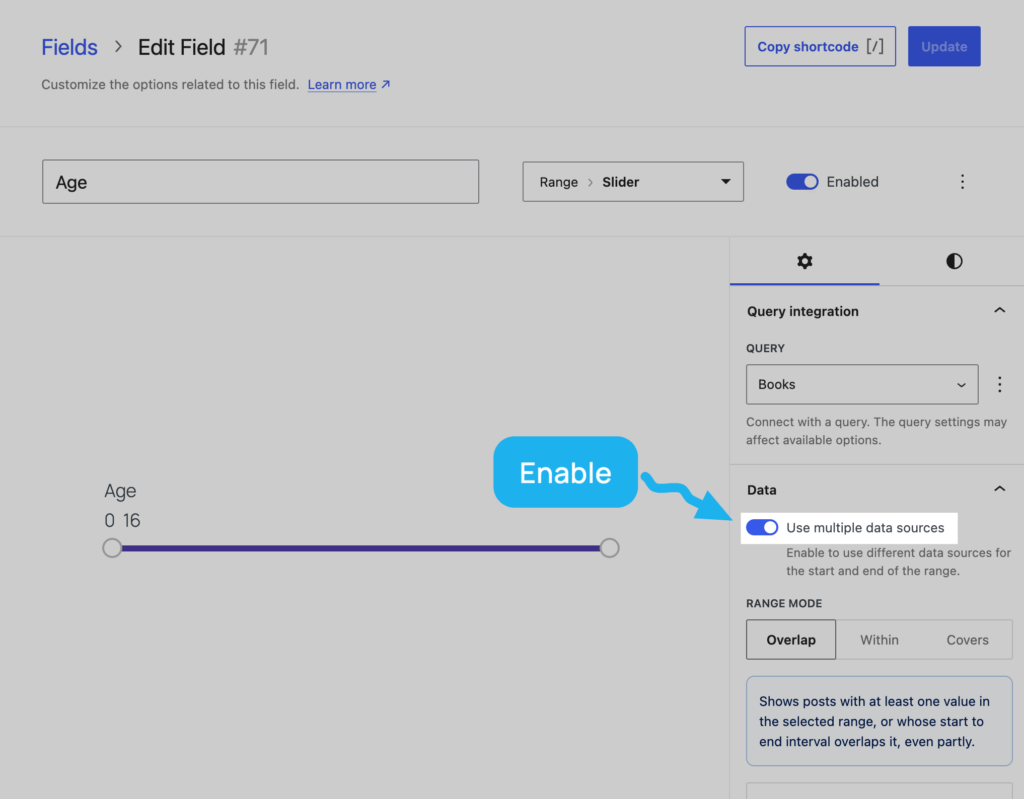
In the Settings tab, under Data, enable Use multiple data sources.
Set Your Start and End Data Sources
You’ll now see a Start value and an End value. Choose a data source for each:
- Custom Field
- ACF Field (Number)
- WooCommerce (price, weight, dimensions)
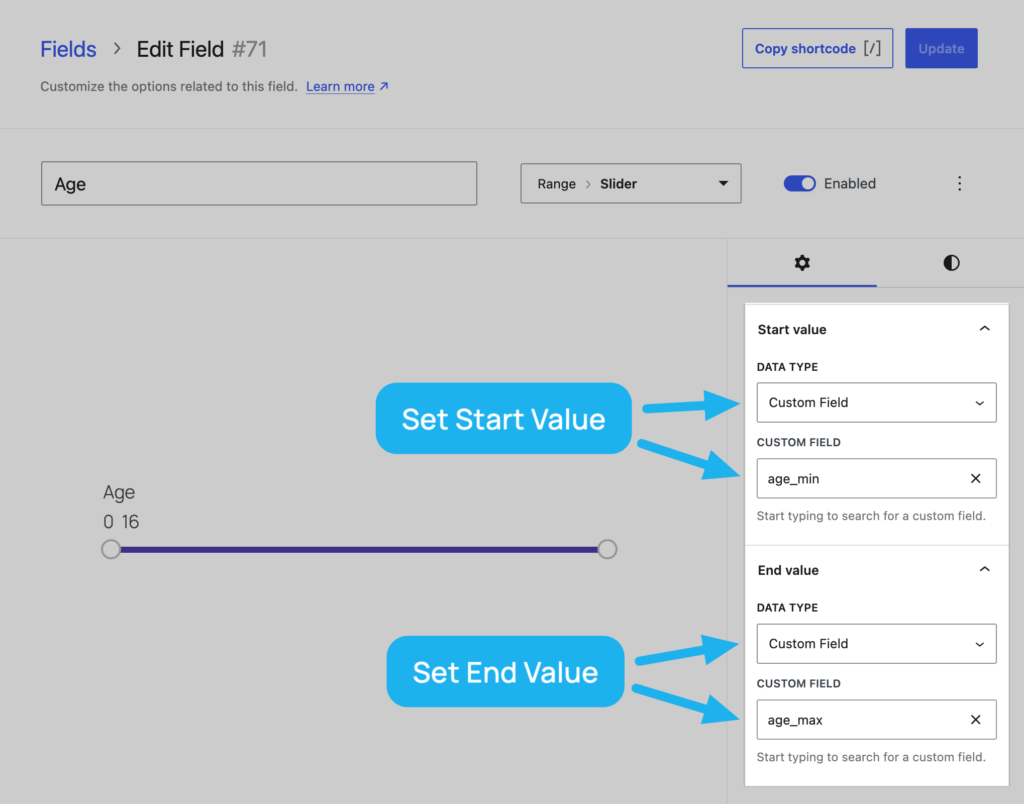
Save the field, and you’re good to go. The index rebuilds automatically in the background.
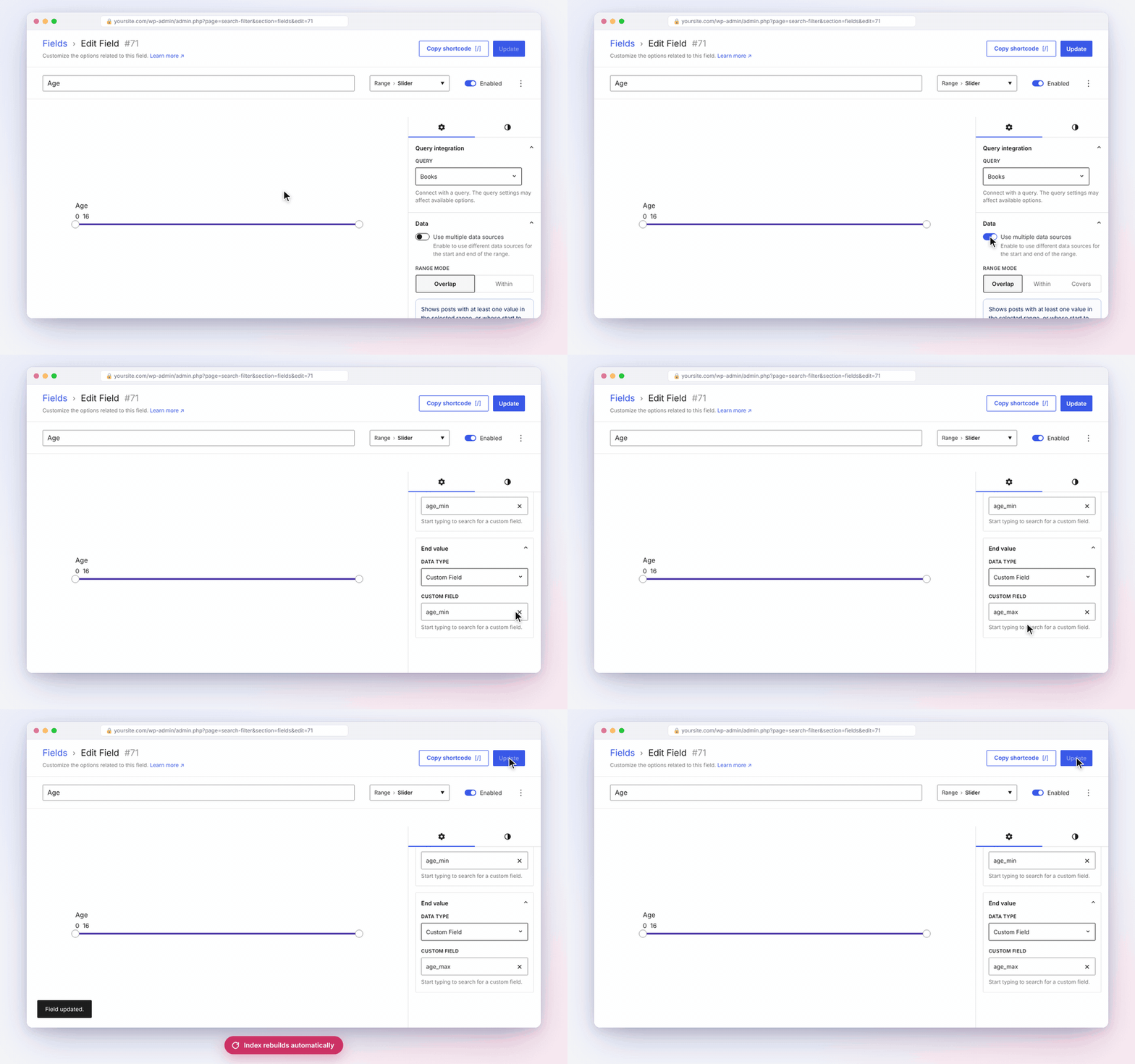
Example: Filter Books by Age
Give each book two custom fields – age_min and age_max. Use them as the start and end values of a Range slider, and visitors see every book suitable for the age they pick. You can also add them with ACF Number fields.
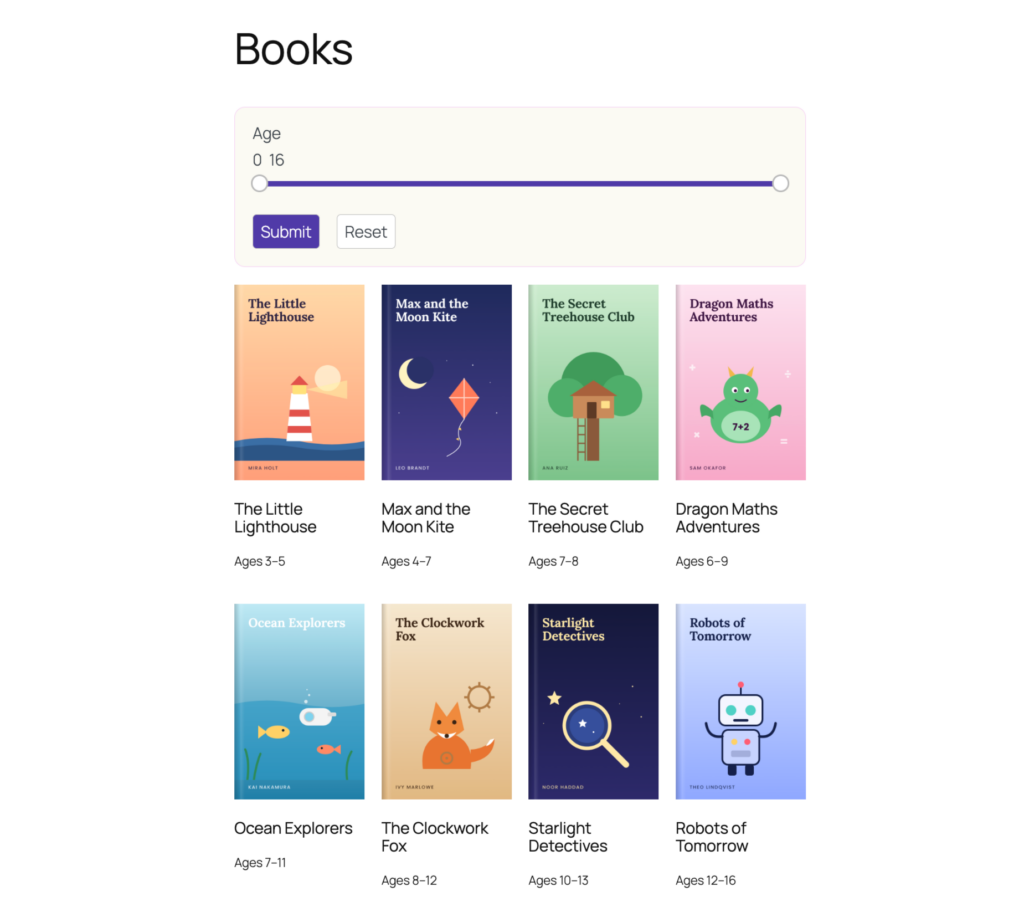
💡 Tip: style your fields like the screenshot.
You can do all of this in the block editor while editing your page, with no custom CSS. Select a block and use the settings in the sidebar.
Group block (the box around the fields)
- Select the Group block that holds your fields.
- Background → Color: #FBFAF3 (off-white).
- Dimensions → Padding: 20px on all sides. Margin: 20px top and bottom.
- Border & Shadow → Border: 1px, colour #F6CFF4 (light pink). Radius: 12px.
Age slider
- Select the slider block and open its Styles tab (half-moon icon).
- Input → Colors → ⋮ → Selected Background Color: #503AA8 (purple). The track behind it takes a lighter tint automatically.
- Settings tab → Behaviour: turn Auto submit off, so results update when visitors press Submit.
Submit and Reset buttons
- Add a Submit and a Reset field after the slider. Select both and choose Row in the toolbar so they sit side by side.
- Select Submit → Styles tab → Input → Colors → ⋮: Background Color #503AA8, Color #FFFFFF.
- Leave Reset on its default style.
Saving the page saves the fields’ styles too. Use your own brand colours in place of the hex values. Not using the block editor? The same field options are in the field’s Styles tab under Search & Filter → Fields. To style every field the same way, use a preset under Search & Filter → Styles.
Add a Date Range Picker
With the Date Range Picker your visitors can choose a start and an end date. Use it to filter by one date per post (such as the published date), or by events and bookings that have a start and an end date.
Note: The Date Range Picker needs the latest styles assets. If you see an upgrade notice in the Search & Filter dashboard, accept it first. If you’re using Custom CSS, test the upgrade on a staging site.
1. Add a Date Range Picker Field
Go to Fields -> Add New. Choose Advanced -> Date Range Picker as the field type, and connect it to a query with the indexer enabled.
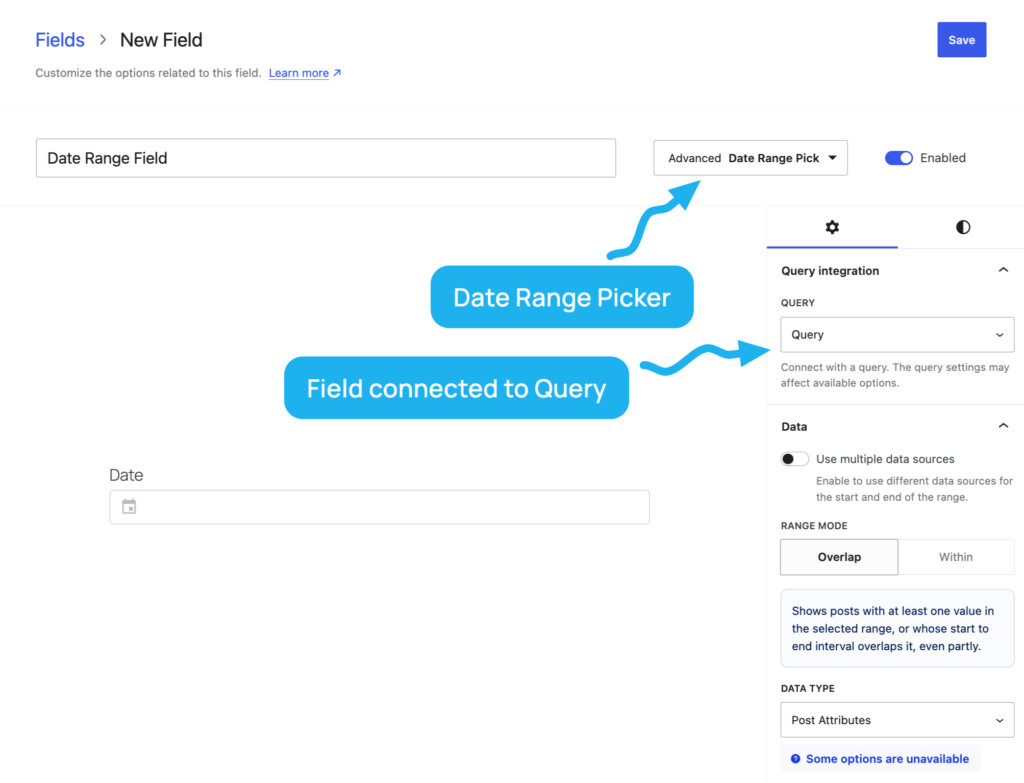
2. Turn On Multiple Data Sources
In the Settings tab, under Data, you can also turn on Use multiple data sources, just like a Range field.
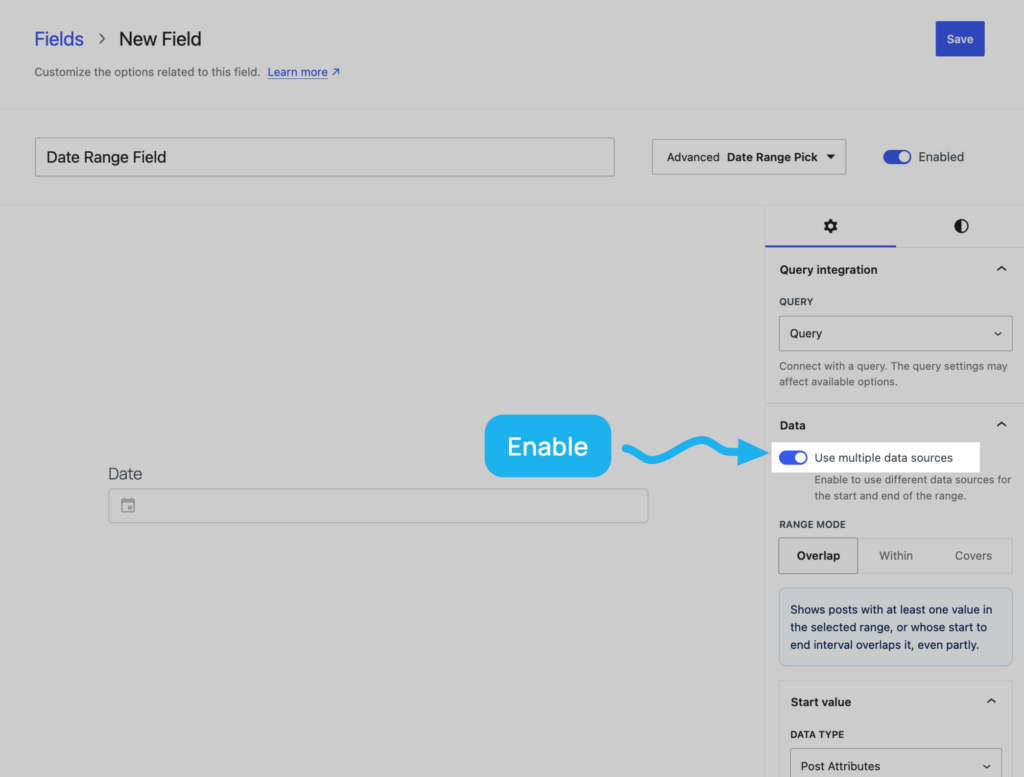
3. Choose Your Start and End Dates
Set the Start value and End value to the fields that store your dates – for example ACF Field -> Event dates -> Event start and Event end.
The dropdowns only list fields that store dates. If an ACF field group shows “No fields found”, it doesn’t contain a date field yet.
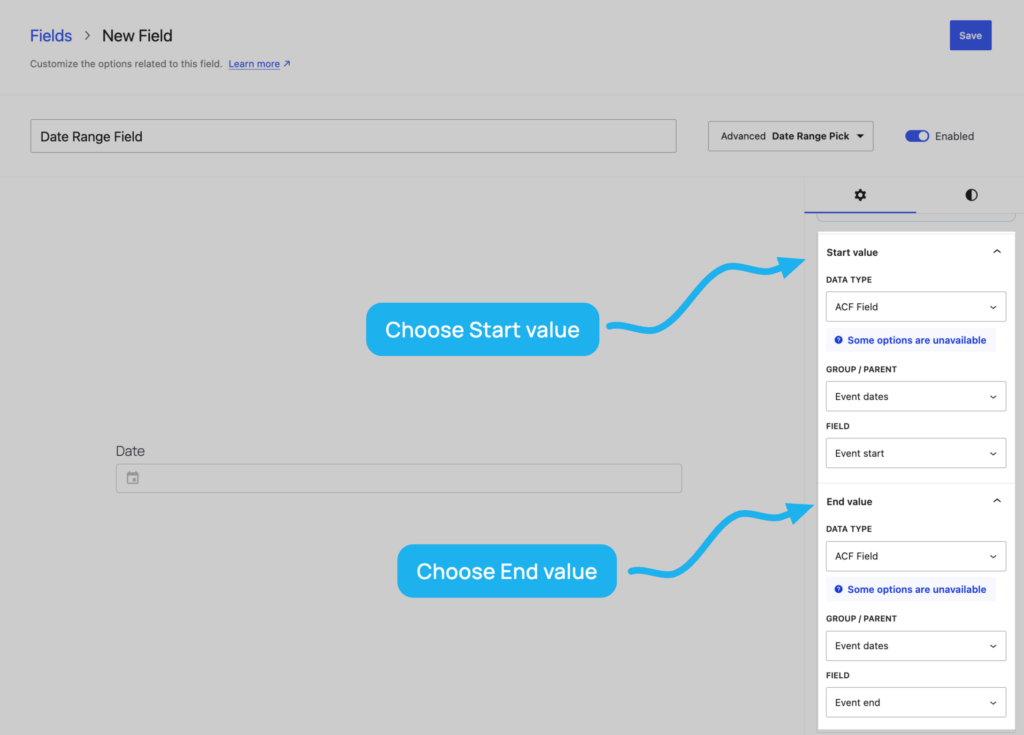
Save the field and add it to your page.
Tip: To filter by a single date instead, such as the post’s Published Date, leave Use multiple data sources off and choose one data source.
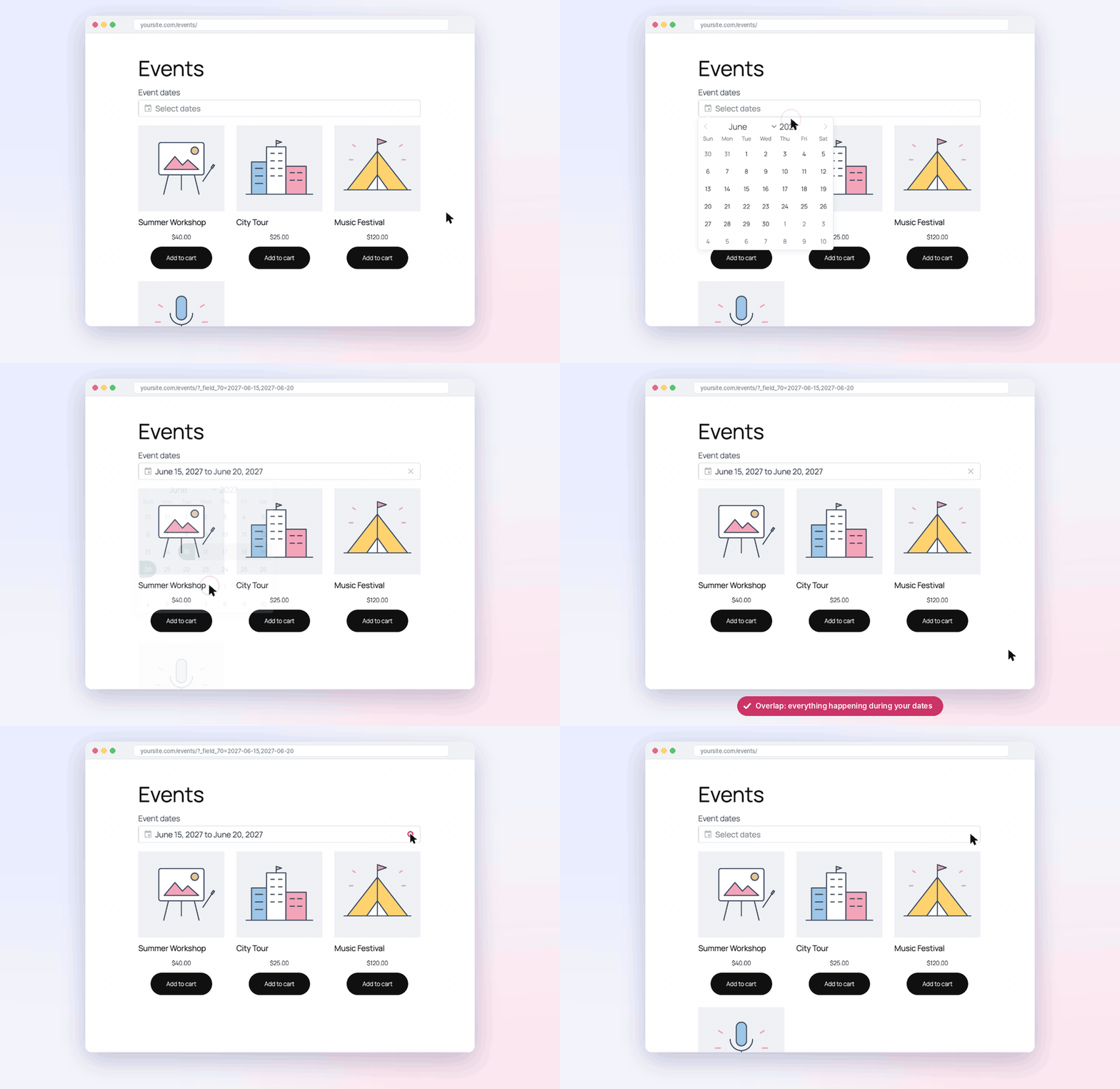
Choose a Range Mode: Overlap, Within or Covers
The Range mode setting in the field’s Data section decides which items match the visitor’s selection. It works the same for Range fields and the Date Range Picker.
Each book stores an age range. The visitor selects ages 6–9.
Overlap Default
Shows items that share at least one value with the selection.
Use when a book that suits part of the selection is still relevant – e.g. every book a child aged 6–9 could read.
Shows: The Secret Treehouse Club, Ocean Explorers, The Big Bug Book
Within Needs indexer
Shows items whose whole range fits inside the selection.
Use when a book must fit entirely inside the selection – e.g. only books written just for ages 6–9.
Shows: The Secret Treehouse Club
Covers Multiple data sources
Shows items whose range includes the whole selection.
Use when a book must suit every age picked – e.g. one book a 6-year-old and a 9-year-old can share.
Shows: The Big Bug Book
Availability: Overlap is the default and always available. Within needs a query with the indexer enabled. Covers appears once Use multiple data sources is on.
Example: Events by Date
A visitor picks 15–20 June:
| Event | Runs | Overlap | Within | Covers |
|---|---|---|---|---|
| Summer Workshop | 16–18 June | ✓ | ✓ | ✗ |
| City Tour | 19–28 June | ✓ | ✗ | ✗ |
| Music Festival | 10–25 June | ✓ | ✗ | ✓ |
| Concert | 1 June | ✗ | ✗ | ✗ |
For rentals and bookings, use Covers – it shows only items available for the whole stay.
Good to Know
- Supported date formats include
20261019(ACF),2026-10-19, ISO dates, “October 19, 2026” and Unix timestamps. Empty dates (like 0000-00-00) and impossible dates (like 30 February) are skipped. - Date display – choose how dates look in the picker under Input -> Display format (e.g.
F j, Yord/m/Y), and set the Separator text shown between the two dates. - The indexer must stay on while a query has start and end fields.
- Turning off Use multiple data sources keeps your Start value as the field’s data source.
- Covers resets to Overlap if you turn off Use multiple data sources.
- The URL parameter changes when you turn on Use multiple data sources: it’s named after the field’s ID unless you set a URL name. Update any links that use the old parameter.
FAQ
Can I filter by ACF Date Picker or Date Time Picker fields?
Yes. Choose them as the start and end sources of a Date Range Picker. Custom field and ACF date sources need a query that uses the indexer; the published date works on any query.
What if an item only has a start date?
It’s treated as a one-day event on its start date. An end date earlier on the same day, such as a date without a time, counts as the end of that day.
Can I filter WooCommerce products (not orders) by a date range?
Yes. Store the dates on each product and use them as the start and end sources.