
The Search & Filter – Bricks Extension allows for seamless integration between Bricks 2.0 and Search & Filter.
With this extension, Search & Filter can directly integrate and filter the following Bricks Elements:
- Container Elements such as the div, container, block and section elements with the Query Loop enabled.
- Posts Element
- WooCommerce Products Element
- Slider and Slider (Nestable) Elements
- Accordion and Accordion (Nestable) Elements
- Archive Queries
- Full support for the Pagination & Query Results Summary Elements
Install + Activate the Extension
To get started first we need to install the extension – you can download it from the extensions section in your account:
- Ensure you have the Bricks 2.0 theme enabled.
- Upload the extension and activate it.
Create a query
Head to Queries in the main navigation, then press Add New to create a new query.
Ensure that location is set to Dynamic or Archive and then choose Bricks Element from the query dropdown:
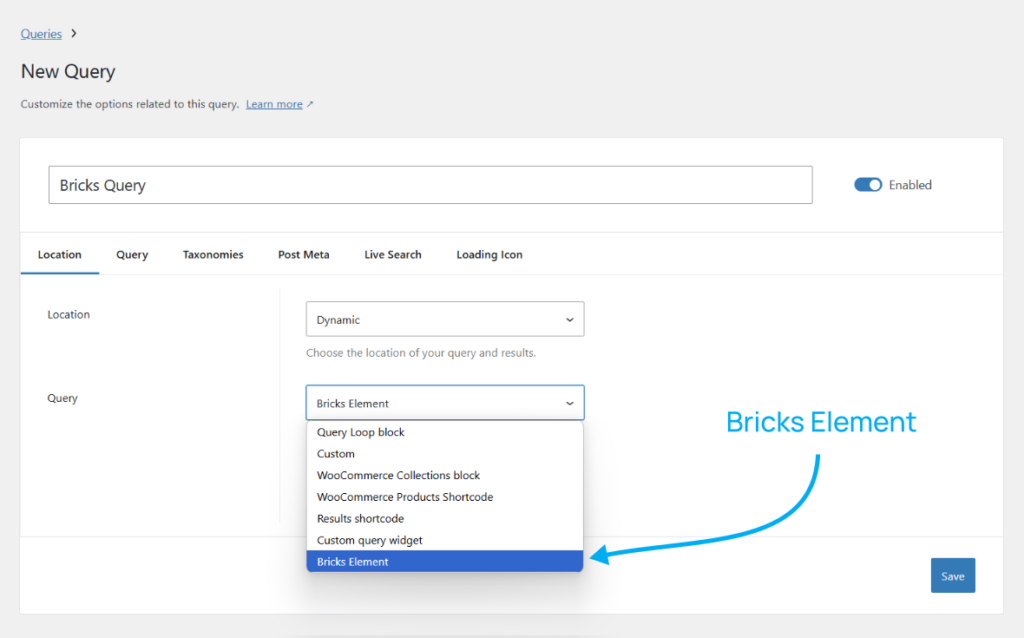
Give your query a name, hit save and your query is good to go.
There are a lot of settings to fine tune your results.
Create a Field
After saving your query, you’ll find your connected fields below. There won’t be any initially – press Add New to create one.
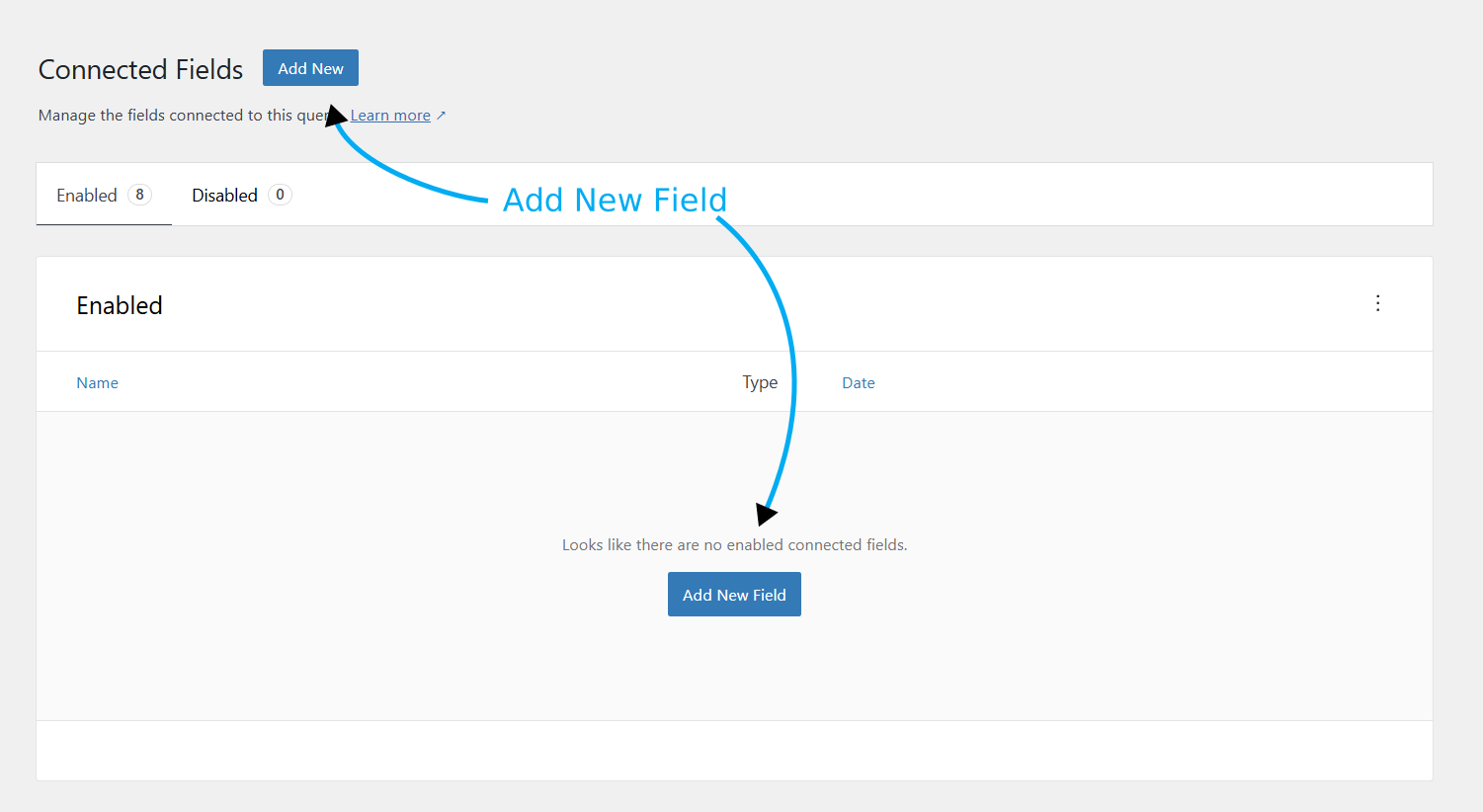
From here you can create as many fields as you need and connect them to the same query.

When creating fields for queries, ensure the query integration option is set to the correct query.
Adding Fields to Your Site
Once you’ve created some fields, you can add them to your Bricks site using the Search & Filter Field element.
Note: using shortcodes to place fields can lead to unexpected behaviour, it’s always best to use the Search & Filter Field Element.
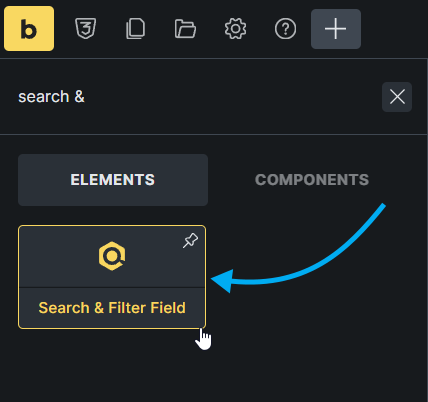
Once you’ve added the element to your page you can choose the field you created earlier from the dropdown:

Filtering Query Loop Container Elements
Bricks container elements allow you to create custom query loops using the div, block, container and section elements.
Using our Bricks integration, you’ll now see a new option when you enable the Query Loop option -> Search & Filter Query.
Enabling this overrides the default query settings and allows you to connect the query to a Search & Filter Query from the dropdown.
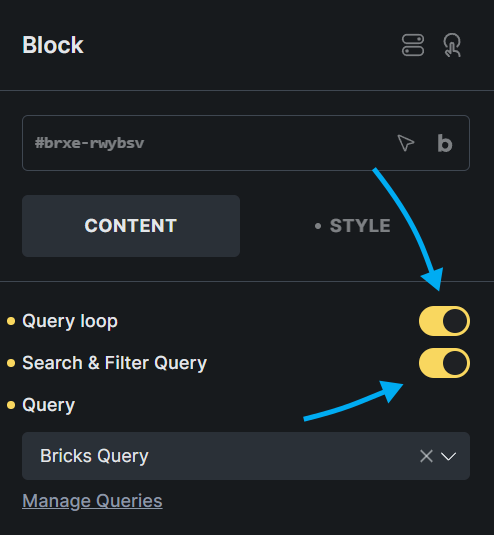
Once you’ve connected the query you should be good to go.
Note: to use Search & Filter’s Live Search feature, you need to ensure your query loop element is inside a container that supports nested elements – ie, div, block, section or container.
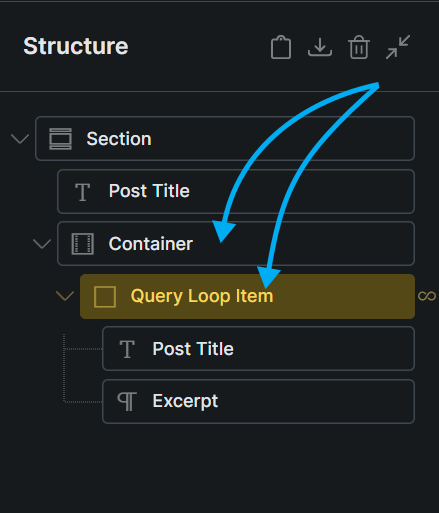
Advanced layouts require you to create a container around your query loop item already – masonry layouts are supported.
Filtering Posts + Products Elements
Enable the Search & Filter Query option to connect with your Posts and Products elements.
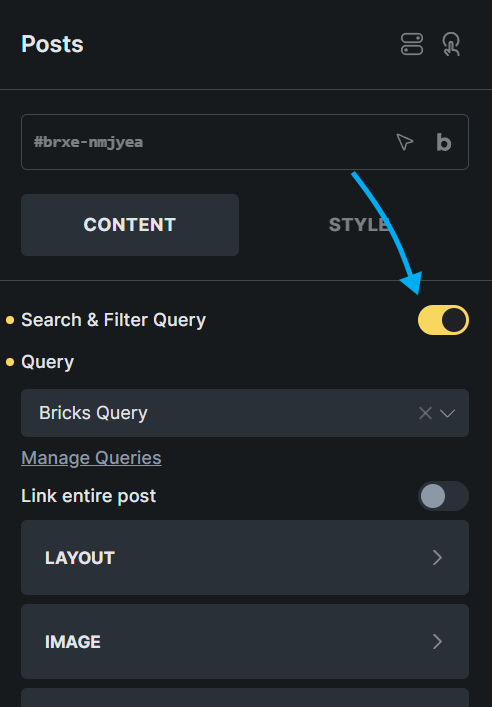
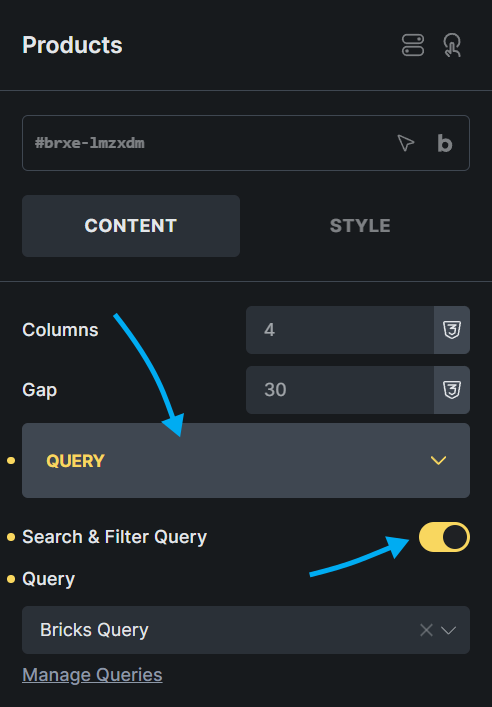
Once that’s done, you’re good to go, all features such as Live Search are automatically supported.
Filtering Accordion & Slider (+ nestable) Elements
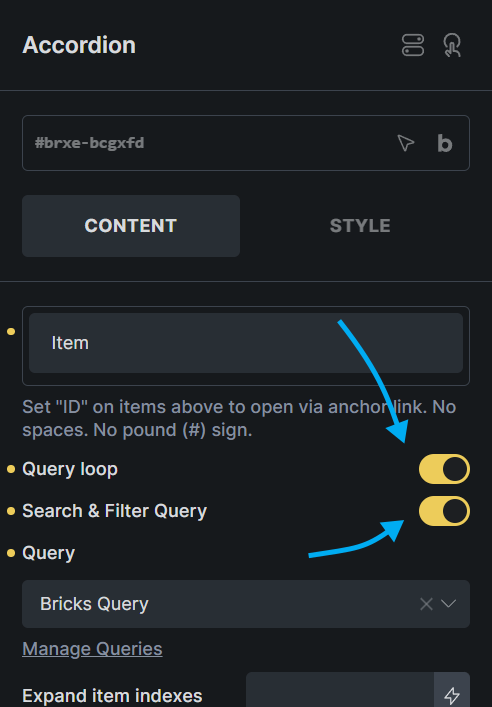
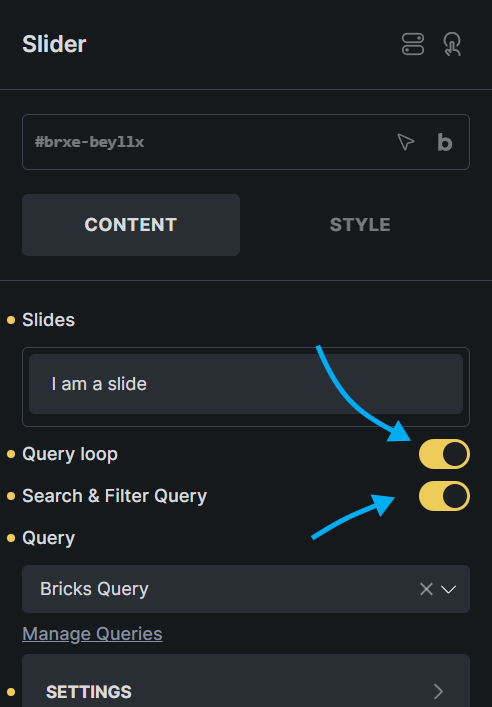
The Accordion & Slider elements also support custom Query Loops.
Enable the Query Loop setting and then the Search & Filter Query setting to allow you to connect to your saved query.
Nestable Elements
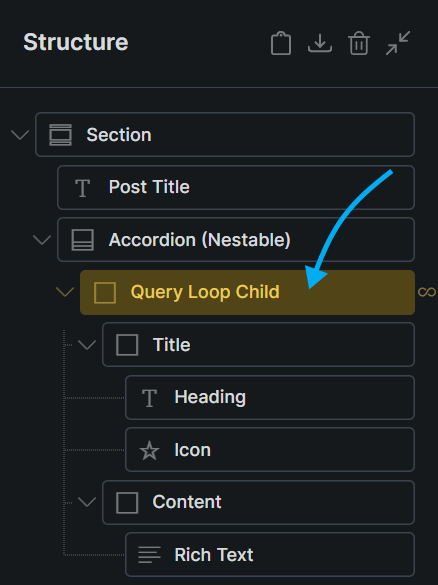
The Accordion (Nestable) and Slider (Nestable) elements work in much the same way as the other Bricks container elements.
To enable Query Loops with the nestable elements, we need to enable the Query Loop option of the first child element inside the accordion or slider element.
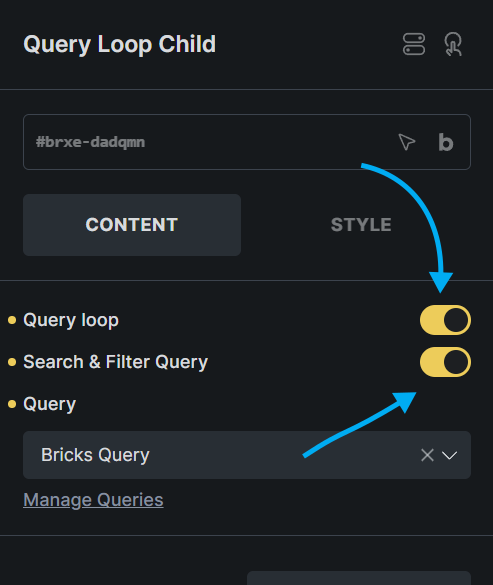
After that we can enable the Search & Filter Query option and connect that to a saved query.
Live Search is supported for Accordion and Slider Elements automatically.
Filtering Archives
Creating Archives in Bricks is handled via the Templates system.
Head to Bricks -> Template -> Add New Template.
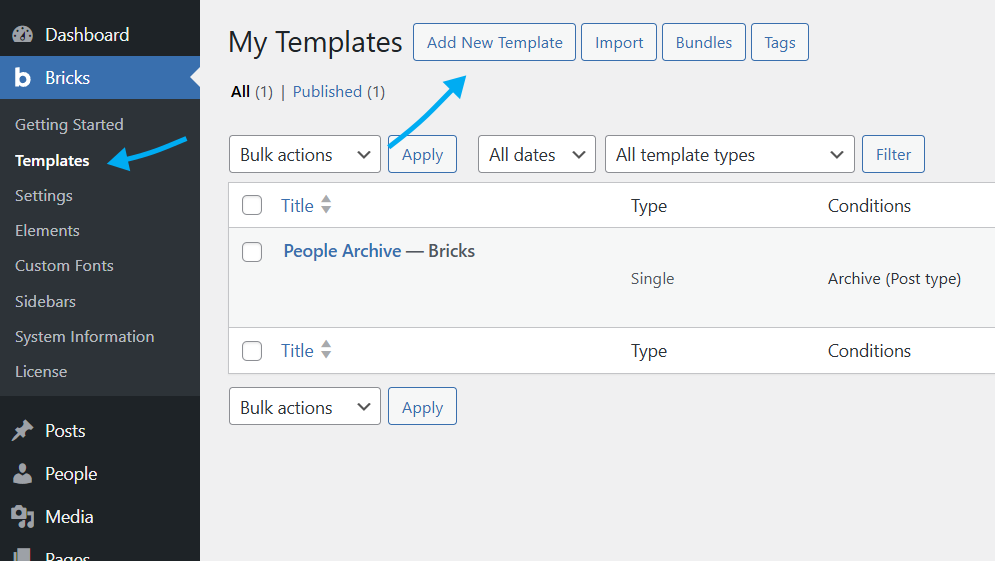
Creating a new template is similar to creating a regular page, with a few differences.
Setup the Template Conditions
From the Settings menu in the top bar, head to Template Settings -> Conditions
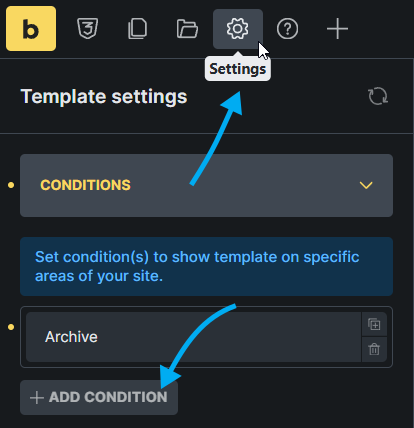
From there you can set the conditions for displaying this template and which archives you’d like to display it on.
Set Your Search & Filter Query to Archive
All the above elements are supported for displaying your archive listing, this includes the containers (div, block, section, container), Posts, Products, Accordion (+ nestable) and Slider (+ nestable) elements.
Once you’ve connected these elements to a Search & Filter Query, ensure that you also setup your query to use Archives.
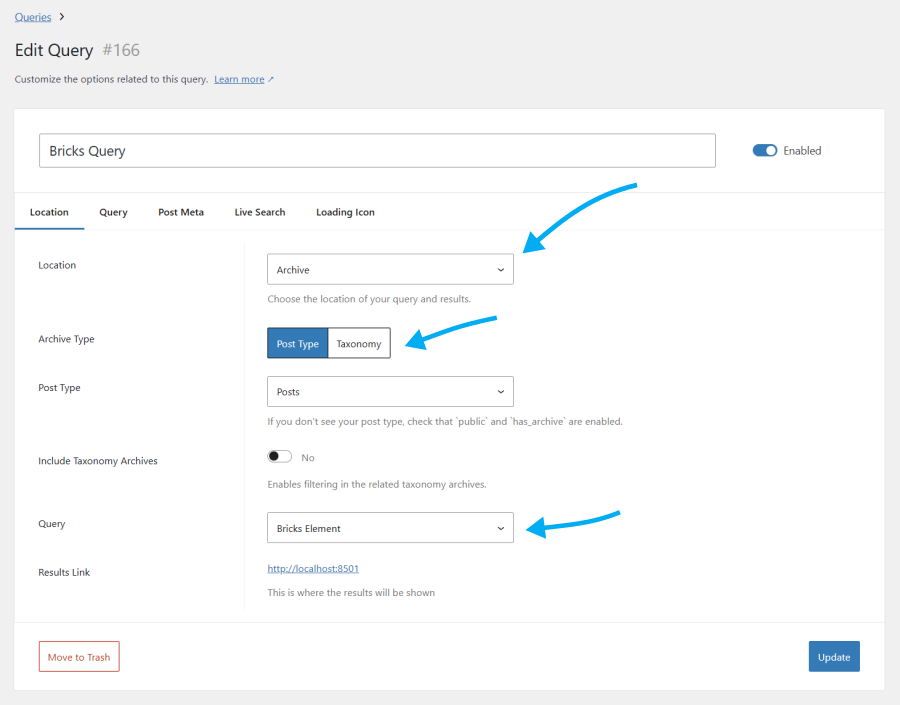
Location should be set to Archive.
Archive Type should be set to Posts or Taxonomies.
Query should be set to Bricks Element.
Pagination & Query Results Summary Elements
Bricks includes support for 2 unique elements to support queries – the Pagination & Query Results Elements.
Both of these are fully supported and can be used with Search & Filter queries.
Configure these elements by setting the query to you the query you want to connect it to as usual:
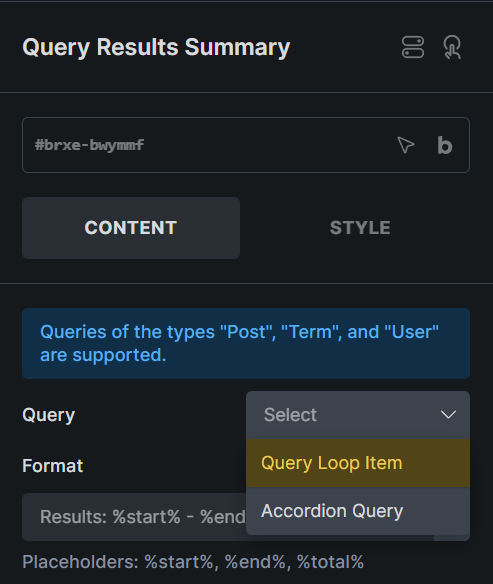
The Search & Filter Bricks Integration will detect this connection and handle the rest.