
The Search & Filter – Avada Extension brings faceted search and filtering to sites built with Avada, connecting your queries and fields directly to Avada’s native building blocks – no shortcodes or custom code required (though shortcodes are still there if you want them).
Once installed, the extension lets Search & Filter power the following Avada elements:
- Post Cards – The workhorse element for listings. Use it to display and filter posts, WooCommerce products, or any custom post type, anywhere on your site.
- Post Card Archives – Filter your archive templates, including the WooCommerce shop, blog listings, and taxonomy archives.
The extension requires the Avada theme, plus the Avada Core and Avada Builder plugins.
Installing the Extension
The quickest way to get started is straight from Search & Filter’s admin.
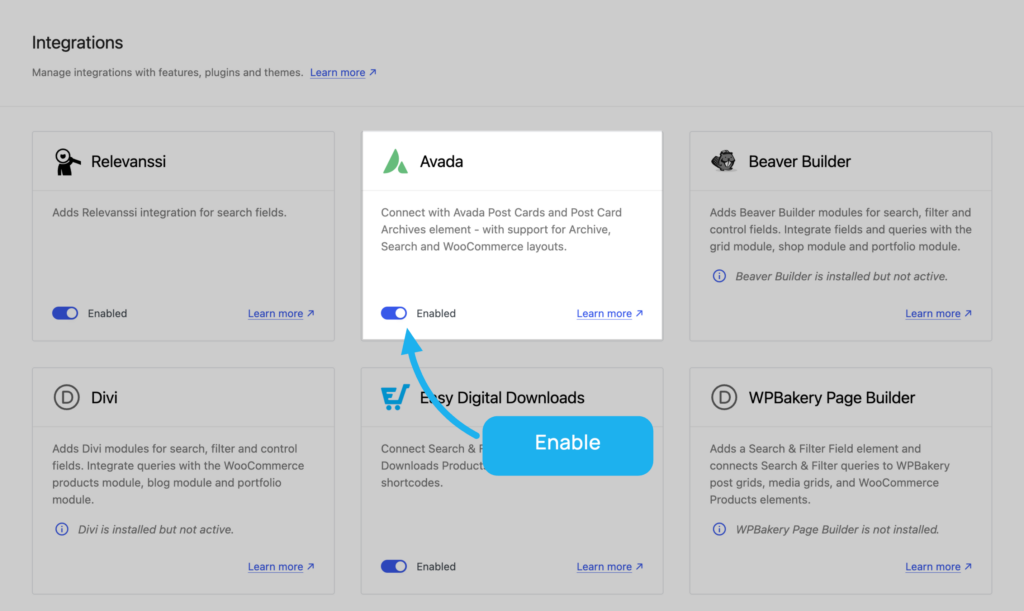
Go to Search & Filter → Integrations in your WordPress dashboard and switch on the Avada integration. Our extension is downloaded and activated for you automatically in the background.
Installing manually
You can also grab the extension from the downloads area of your account and install it like any other plugin:
Upload it via Plugins → Add New → Upload Plugin, then activate.
What you’ll need
The Avada extension requires Search & Filter Pro 3.2.0 or newer, the Avada theme, and the Avada Core and Avada Builder plugins.
Setting Up a Query
Everything starts with a query. In the main menu, open Queries and click Add New.
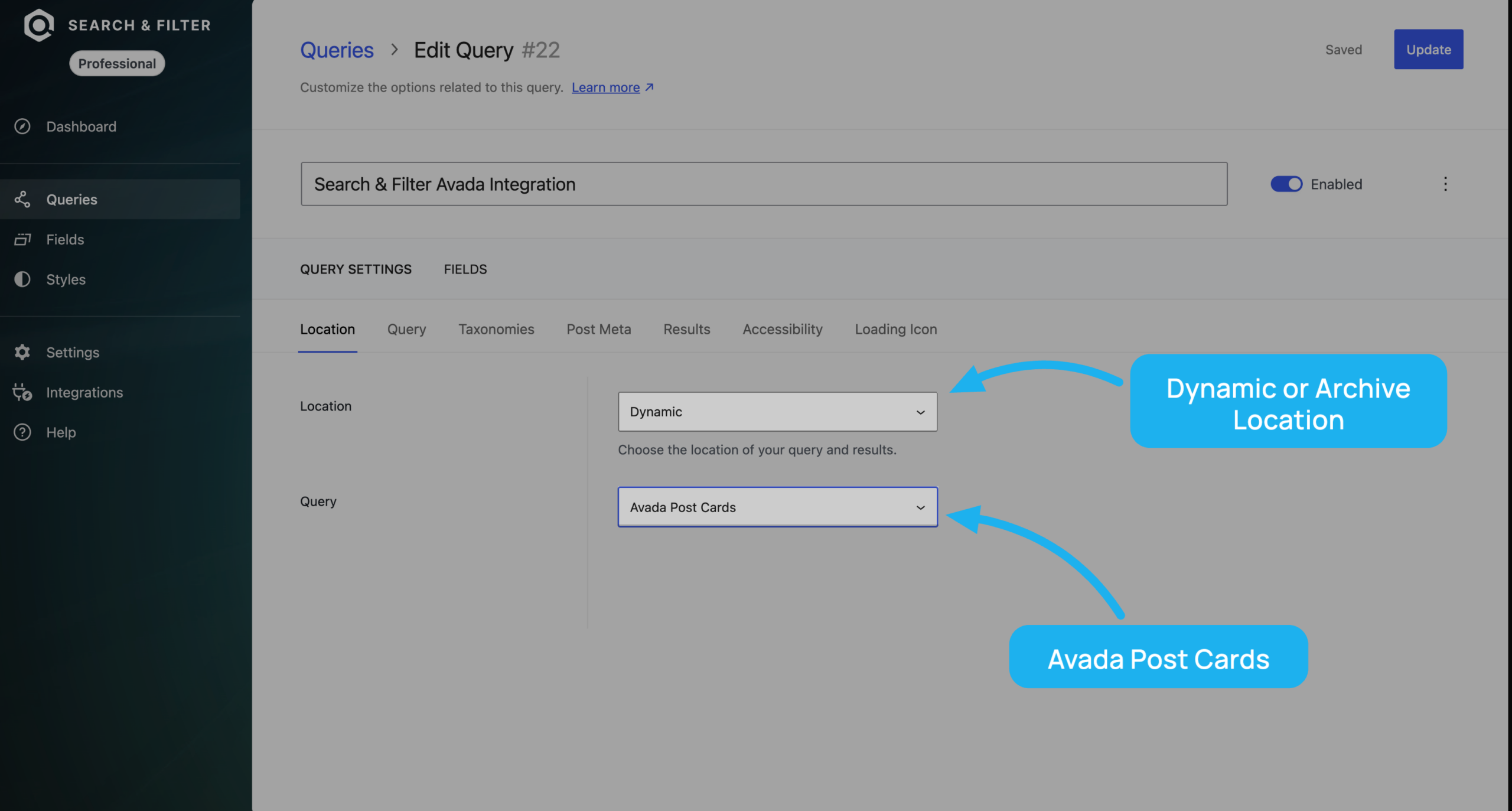
Set the location to Dynamic or Archive, then pick Avada Post Cards from the query type dropdown:
Name your query, save it, and that’s the foundation in place. From here you can dig into the settings to fine-tune exactly how your results behave.
Adding Fields
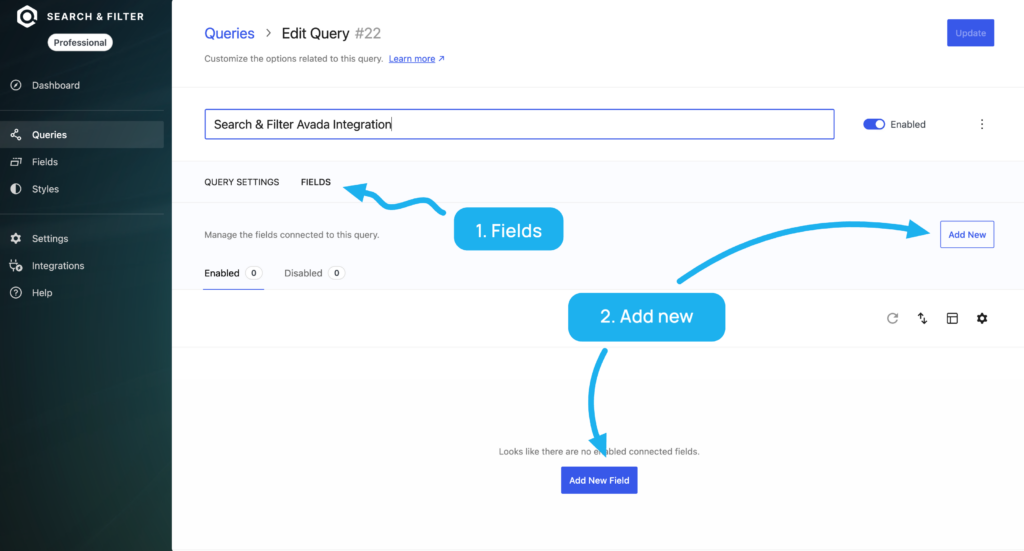
Your fields – the checkboxes, dropdowns, search boxes, and other inputs that visitors interact with – live under the Fields tab of your saved query. It’ll be empty to begin with, so hit Add New to build your first one.
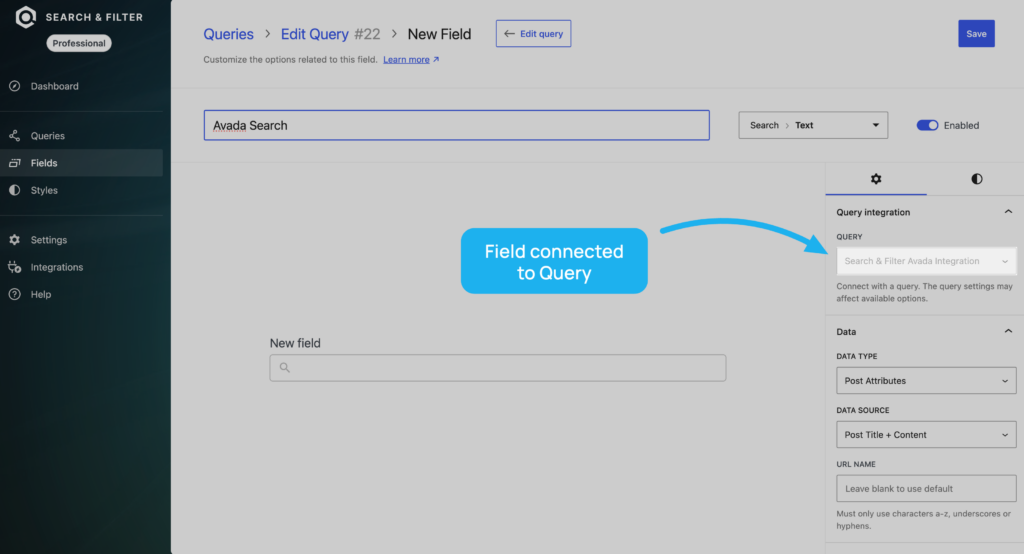
Create as many fields as your form needs, connecting each one back to the same query. Just double-check the query integration option points at the right query as you go.
For a deeper dive into field types and options, see our guide to fields.
Placing Fields on the Page
Note: These steps use the Avada Live (front-end) editor. The same elements and settings are available in the back-end editor if you prefer to work there.
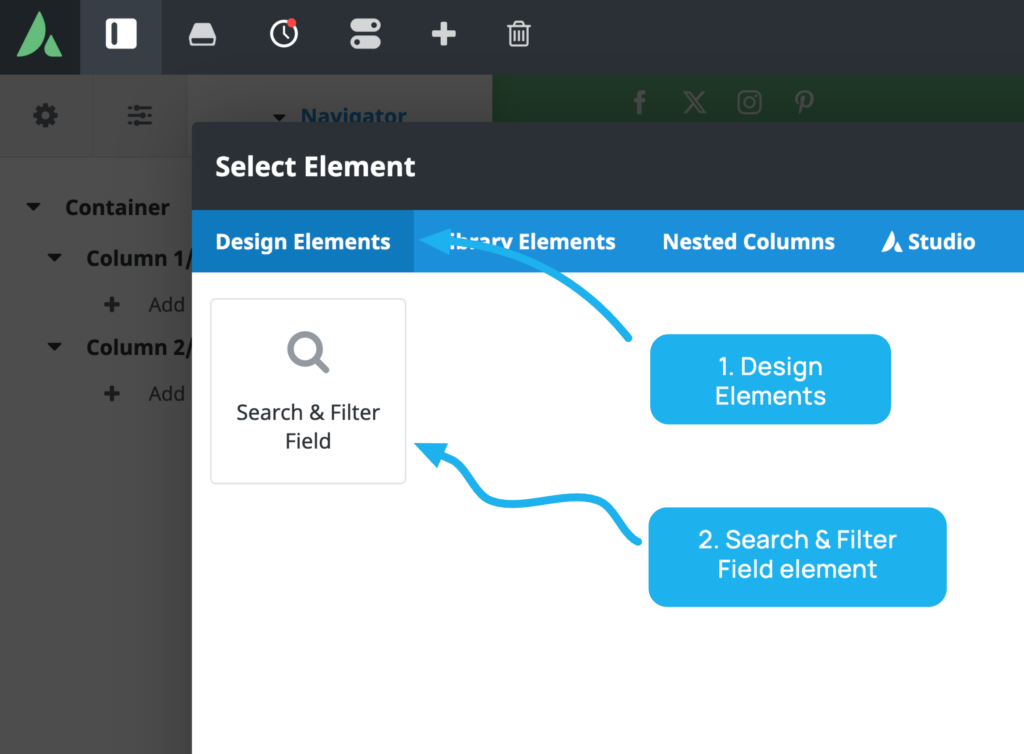
With your fields ready, you can position them anywhere on your Avada layout using the Search & Filter Field element. You’ll find it on the Design Elements tab of the Avada Builder element library:
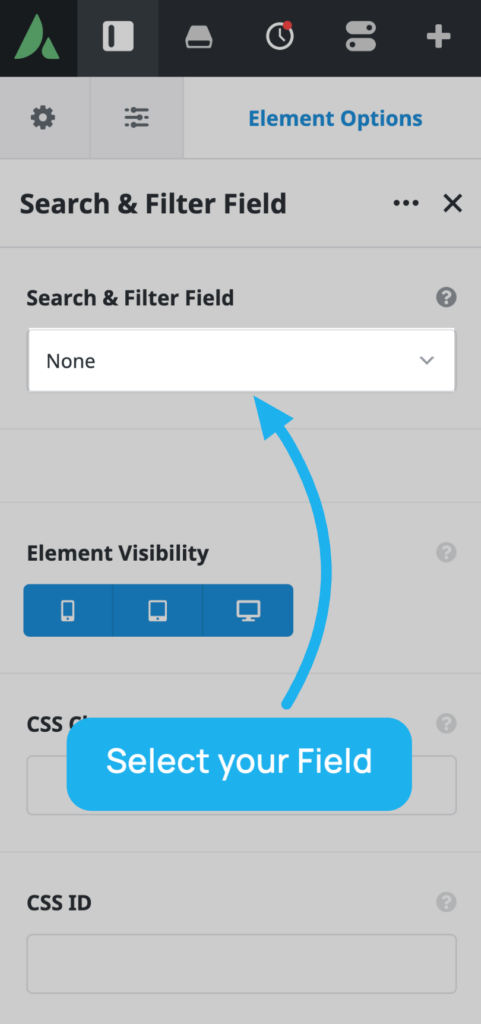
Drop it in wherever your form should appear, then select the field you created from the element’s dropdown:
Repeat for each field until your form is complete. (If you’d rather use Search & Filter’s shortcodes, those continue to work exactly as before.)
Filtering Post Cards
The Post Cards element is where your filtered results appear, and it can display any post type available on your site (e.g. standard posts, WooCommerce products, or any custom post type).
Add a Post Cards element to your page, turn on Use Search & Filter, and choose the query you set up earlier. This hands control of the element’s results over to Search & Filter, replacing Avada’s built-in query options.
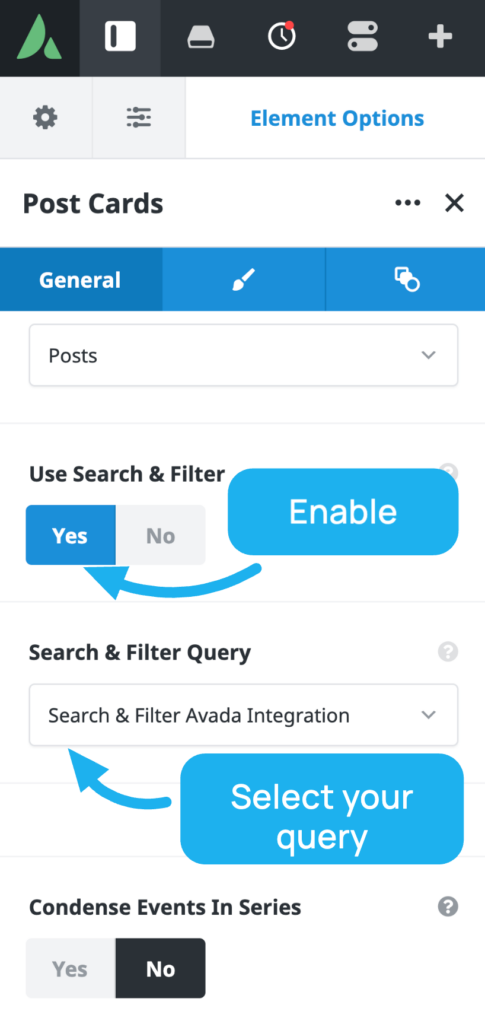
That’s all it takes. Live Search, pagination, and the rest of Search & Filter’s features come along automatically.
💡 Live Search tip: For Live Search to work, place your Post Cards element inside a wrapper (a column or container). Search & Filter uses that wrapper as the region it swaps out via AJAX when results update.
Filtering Archives
Archive pages in Avada are built with the Layouts system, and the extension hooks into them the same way.
- Go to Avada → Layouts and create a new Layout (or edit an existing one).
- Set the Layout’s conditions to decide where it displays — for example, your blog, a taxonomy archive, or the WooCommerce shop.
- Click Select Content on the Layout and create a new Layout Section if you don’t already have one.
- Edit that section in the Avada Section builder and add the Post Card Archives element to output your listing.
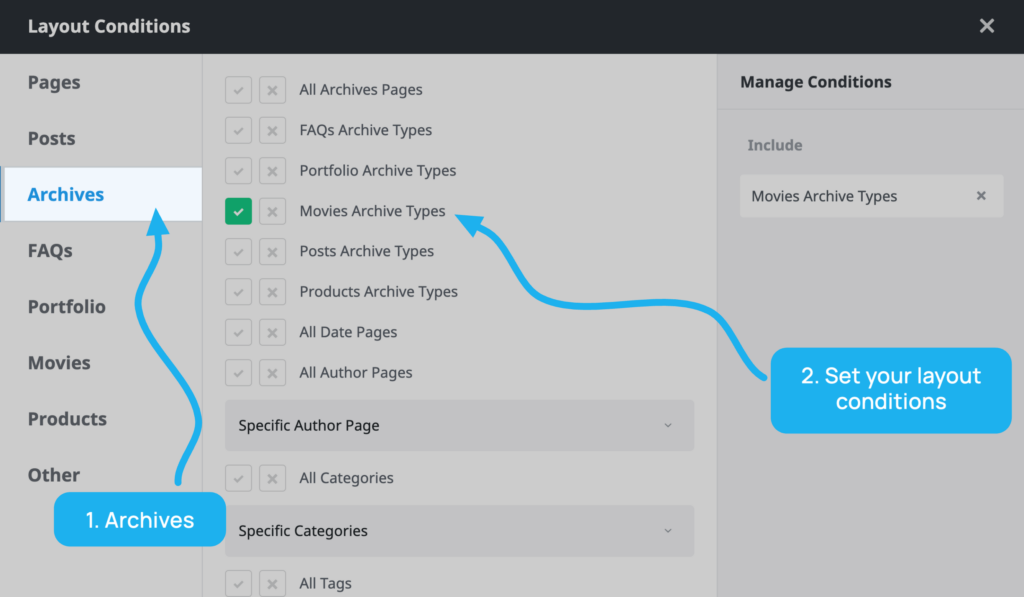
As long as your query is set to filter an archive, Search & Filter takes it from there. You can also drop Search & Filter Field elements into the same section to build your form — you’ll find the element on the Design Elements tab of the Avada Section builder.
Point Your Query at the Archive
The last piece is making sure the query itself is configured for archives. Open your query and check:
- Location → Archive
- Archive Type → Posts or Taxonomies, then choose the specific post type (or taxonomy) you want to connect to the query
- Query → Avada Post Cards
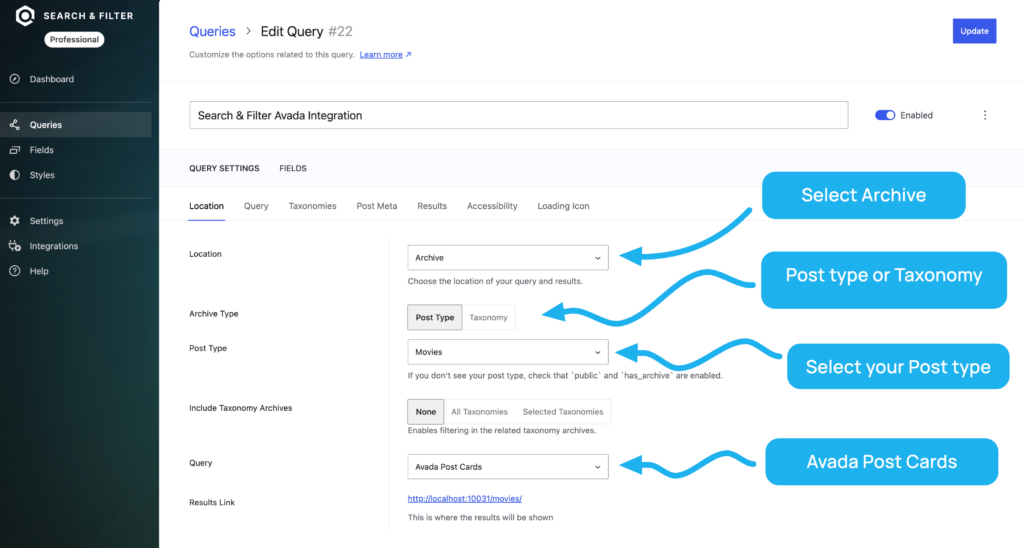
With the layout and query aligned, your archive is ready to filter.
A Note on Pagination
You don’t need to configure pagination separately. For any Avada element that supports it, pagination works out of the box — including alongside Live Search over AJAX.