
The Search & Filter – Easy Digital Downloads Extension allows for seamless integration between Easy Digital Downloads (EDD) and Search & Filter Pro.
With this extension, Search & Filter can directly integrate and filter the following:
- Products block.
- Downloads shortcode –
[downloads]and[edd_downloads].
EDD still controls how your products look, while Search & Filter controls which products are shown and the pagination.
Install + Activate the Extension
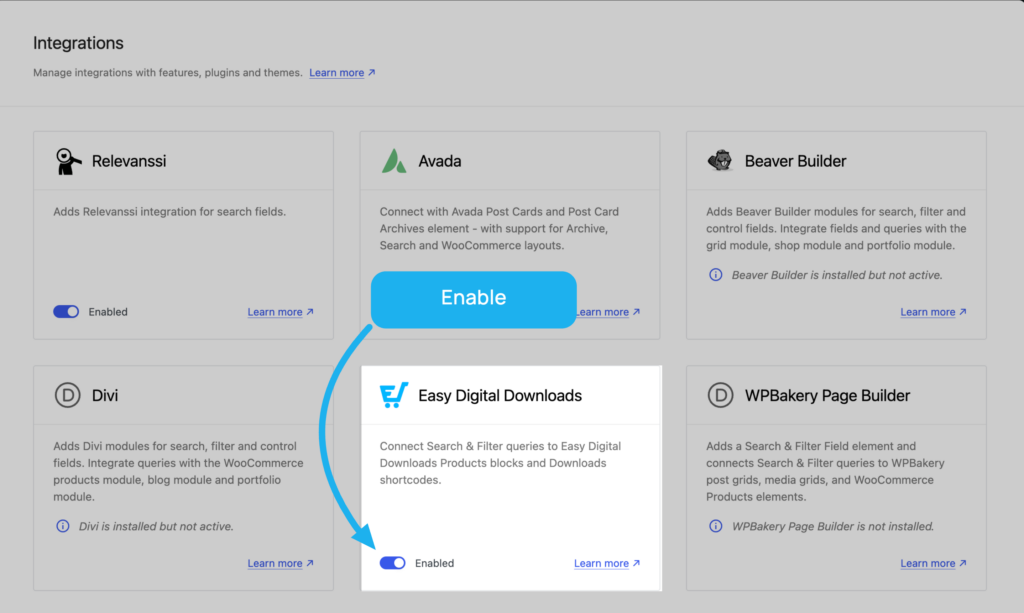
Head to WP-admin -> Search & Filter -> Integrations and enable the Easy Digital Downloads integration. This will automatically download and enable our EDD extension in the background.
Manual Installation
Alternatively, you can download the extension plugin and install it on your WordPress website via the extension page in your account.
- Ensure you have the Easy Digital Downloads plugin enabled.
- Upload the extension plugin and activate it.
Supported Versions
Our extension plugin requires Search & Filter Pro 3.3 or newer and Easy Digital Downloads 3.6 or newer.
Create a Query
Head to Queries in the main navigation, then press Add New to create a new query.
Ensure that location is set to Dynamic or Single Post / Page / CPT and then choose EDD Products block or EDD Downloads shortcode from the query dropdown – depending on how your products are displayed:
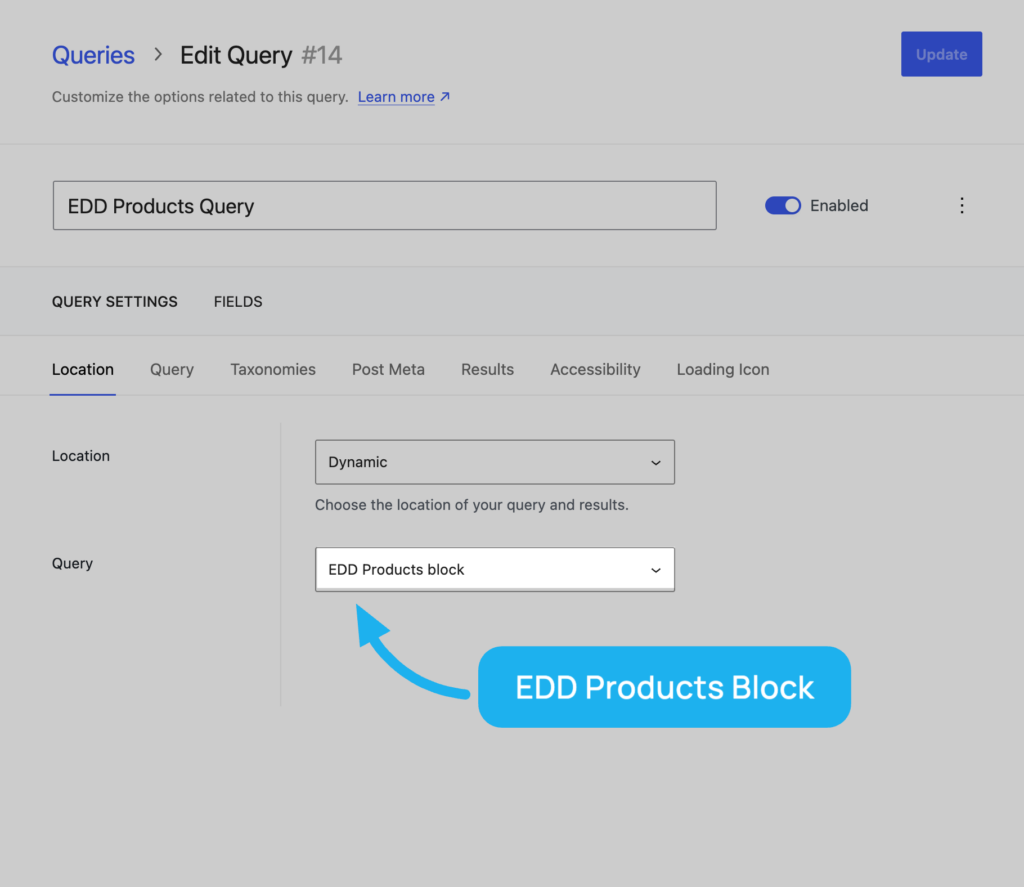
Post Types is automatically set to Downloads once an EDD option is chosen.
Give your query a name, hit save and your query is good to go.
Create a Field
After saving your query, you’ll find your connected fields in the Fields tab. There won’t be any initially – press Add New to create one.
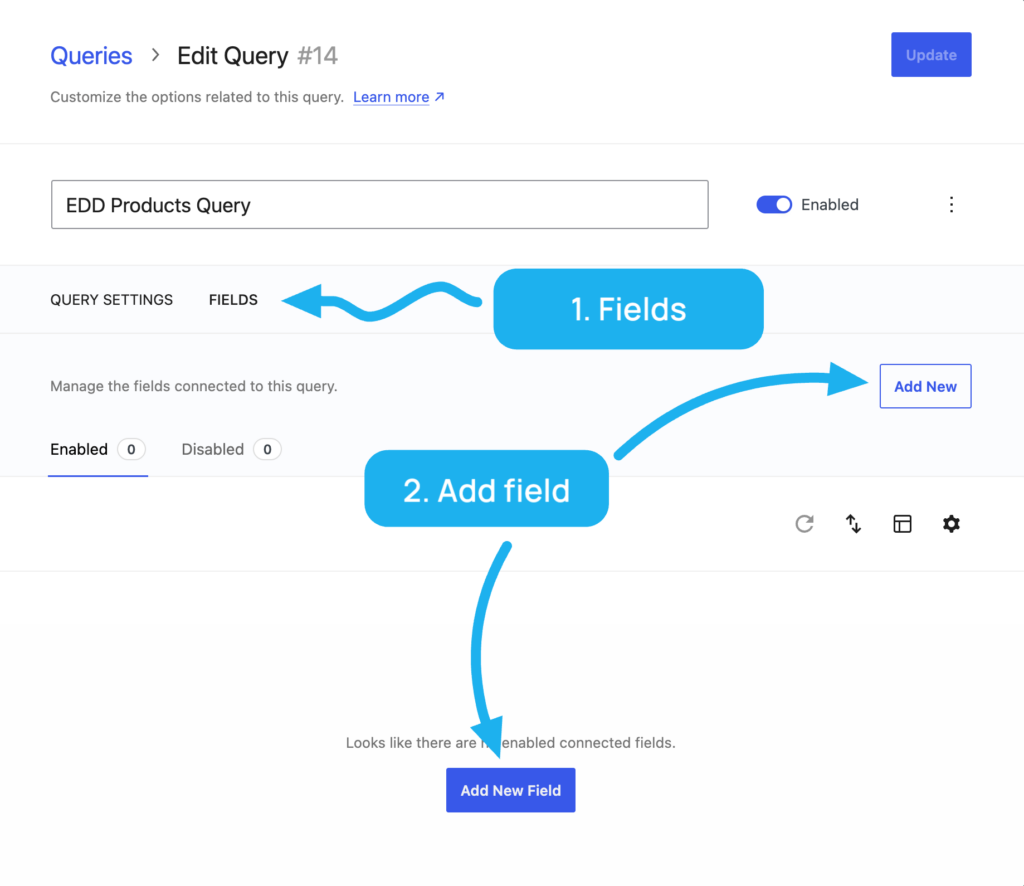
From here you can create as many fields as you need and connect them to the same query.
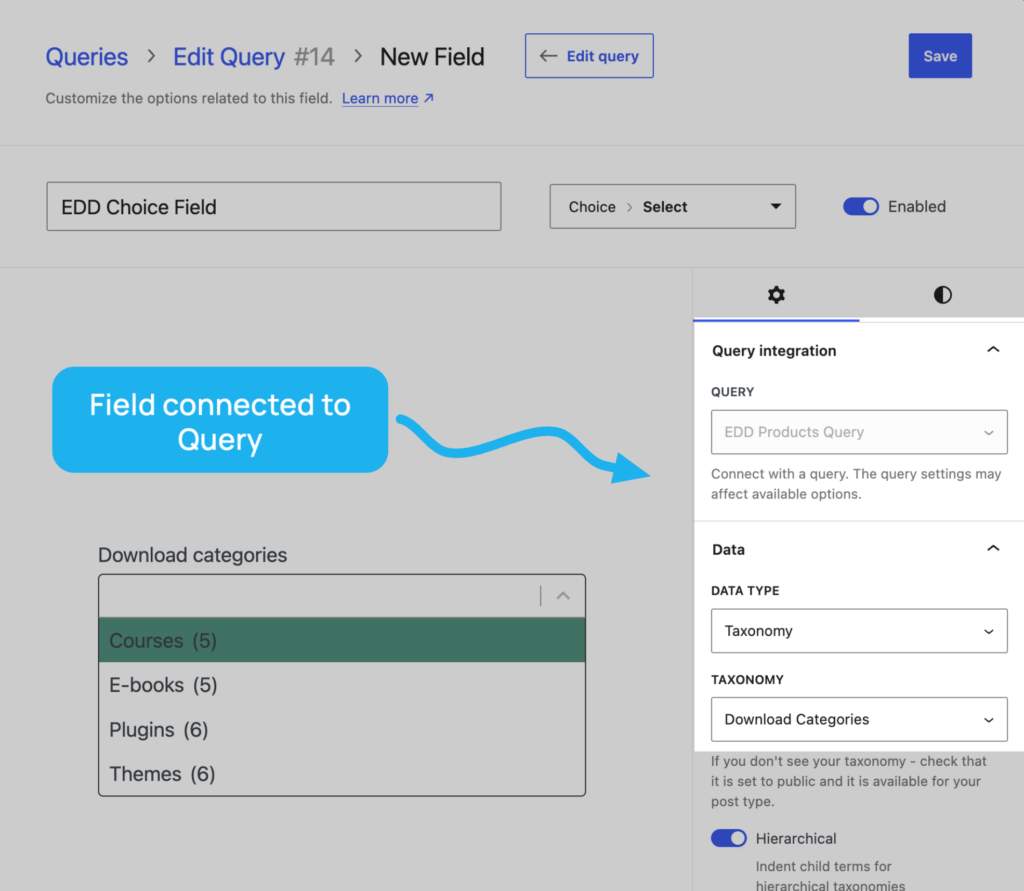
When creating fields for queries, ensure the query integration option is set to the correct query.
Adding Fields to Your Site
Once you’ve created some fields, you can add them to the page with your products using the Load Field block.
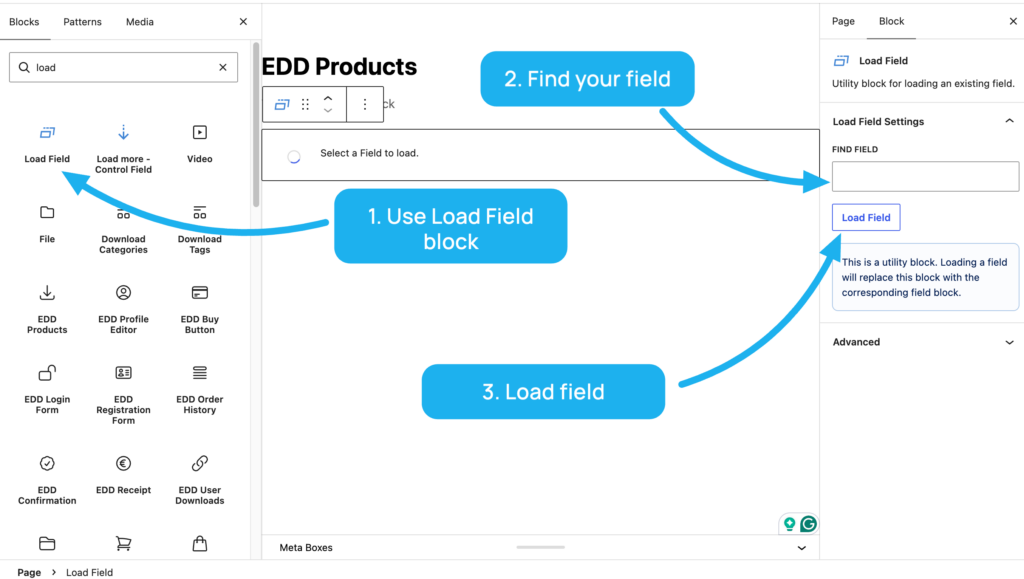
Once you’ve added the block to your page you can choose the field you created earlier from the dropdown:
If you’re not using the block editor, use the field’s shortcode (found underneath the field editor) instead.
Filtering the Products Block
Select your Products block and open the Search & Filter Query panel in the block settings, then choose the query you created earlier from the dropdown.
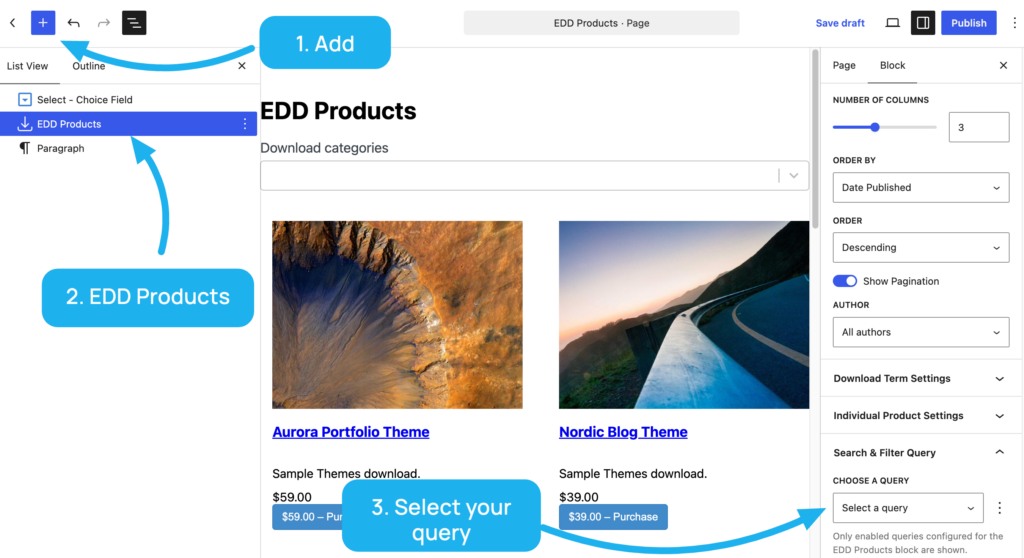
Only enabled queries set to EDD Products block will appear in the dropdown. All of EDD’s own block settings remain available.
Once that’s done, you’re good to go, features such as Live Search are automatically supported.

Filtering the Downloads Shortcode
Add the Query ID to the Shortcode
Add the search_filter_query_id attribute to your shortcode with your query ID, where 123 is your query ID:
[downloads search_filter_query_id="123"]
The [edd_downloads] shortcode works the same way, and any other shortcode attributes you’re already using will keep working.
Set Your Search & Filter Query to Downloads Shortcode
Make sure your query is set up to use the shortcode:
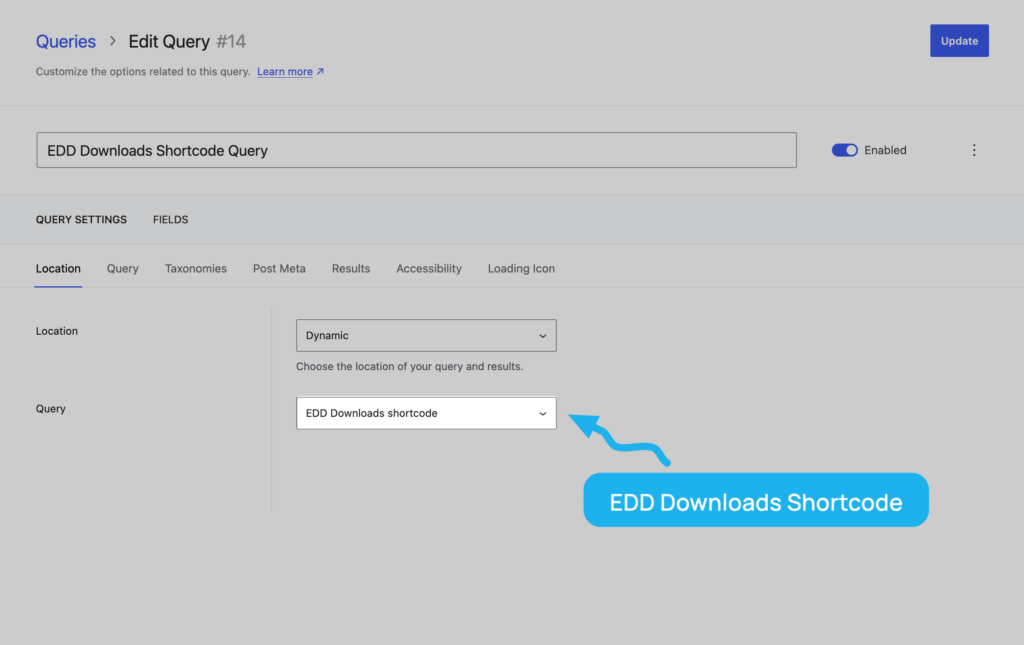
Location should be set to Dynamic or Single Post / Page / CPT.
Query should be set to EDD Downloads shortcode.
A query set to EDD Products block won’t connect to a shortcode, and vice versa.
Pagination
Numbered pagination is automatically supported for both the Products block and the Downloads shortcode, including via live search with ajax.
Load More and Infinite Scroll are not currently supported.