
Creating Search & Filter Queries
How it Works
Search & Filter comes with its own advanced query editor – acting as a bridge between results listings and our fields.
To connect a field to a query, we need to:
- Create a Search & Filter Query
- Assign Fields to the Query
- Assign the Search & Filter Query to results/listing (most likely the Query Loop block)
Creating Queries
While it is possible to create queries & fields via our admin pages, everything is also available directly in the block editor – which means you never need to interrupt your workflow to build queries & fields with Search & Filter.
If you’ve already added a field to the block editor, you can select the Add Query or Edit Query options from the Query Integration Panel.

Query Editor Modal
Adding or editing a query will open the query editor modal.

The main settings to configure to connect to a Query Loop Block are:
- Location – set this to Dynamic to use the current page, but you might want to set this to Single and specify a page if your results are on another page, or Archive if you’re using FSE and want to filter archives.
- Query – Set this to Query Loop Block to integrate with WordPress’ built in Query Loop Block. Choose another query type if you need to connect with a different type of query.
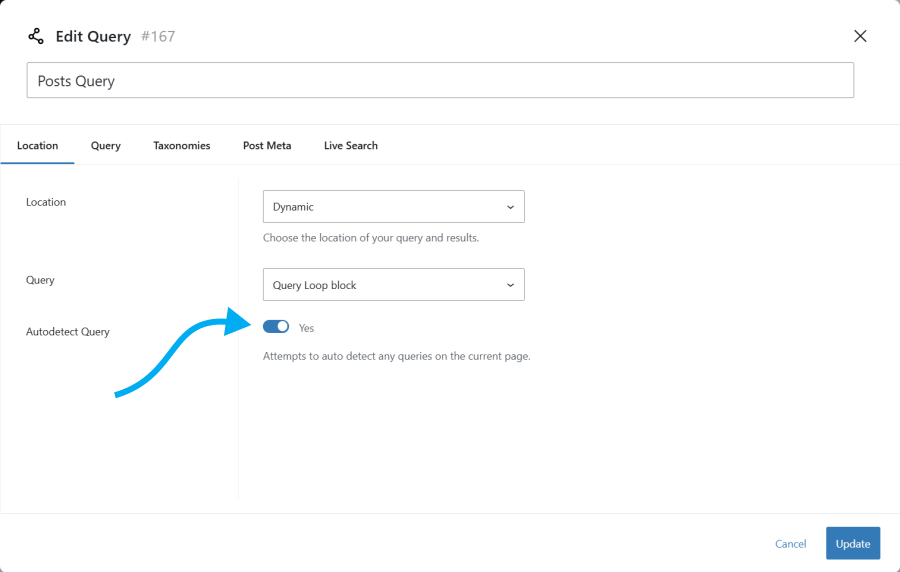
- Autodetect Query – Enable this option to autodetect which Query Loop Block to connect with. If you are using more than one query loop block, its recommended not to use autodetection and instead specify the query connect to via the Query Loop Block dropdown.
There are a lot of configuration options for Search & Filter Queries, such as the ability to create post meta and taxonomy queries, add multiple levels of sorting, include/exclude posts and pages, and much more.
Live Search & Loading Icon (Pro)
It is generally recommended to enable Live Search via the Live Search tab, which then reveals further customisation options such as the loading icon.

Query Loop Block
One of the Block Editors most powerful tools is the Query Loop Block.
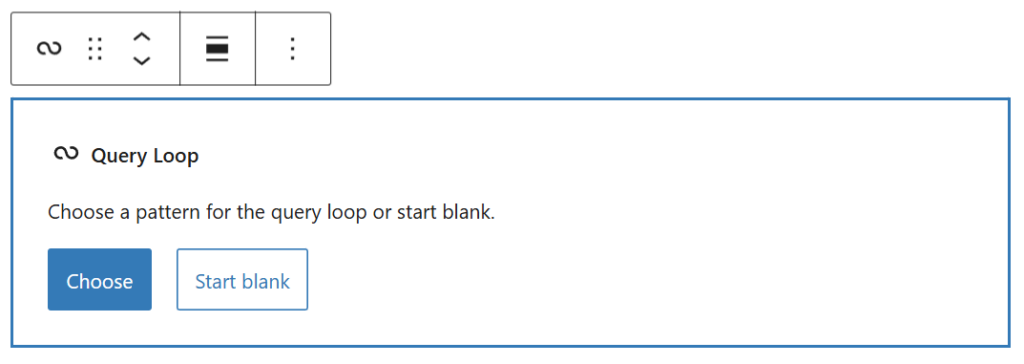
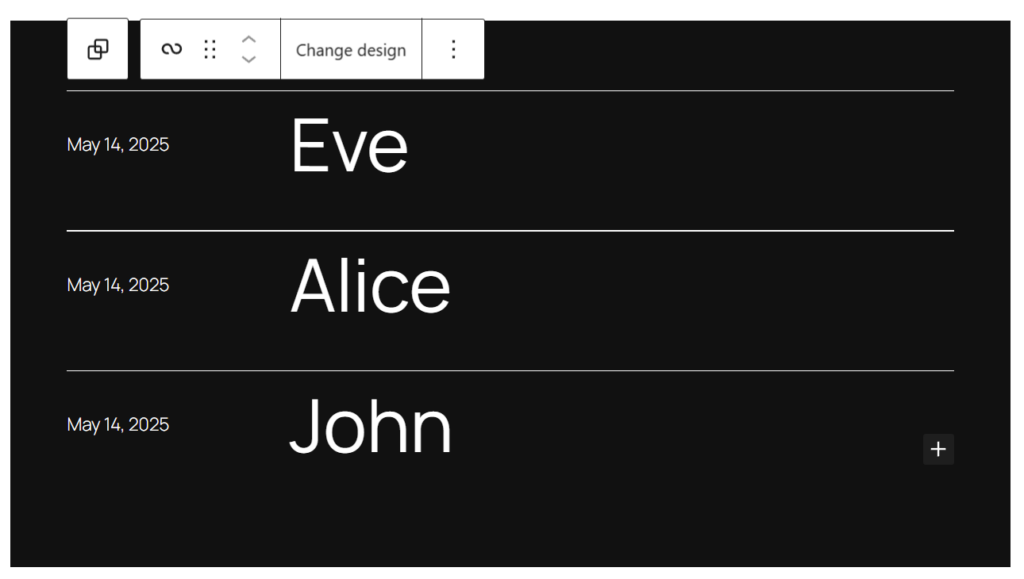
This block allows you to create listing and grids of your posts, and granularly control the layout and design of each item in the listing.
Choose a preset or create your own designs to create rich post listings.
Connect To a Search & Filter Query
Once you’ve created your design and layout, you can then connect a Query Loop Block to a Search & Filter Query.
Option 1: Auto-detect the Query Loop
In your query settings ensure that auto-detect is enabled and Search & Filter will detect any query loops on the same page where you have placed your filters.
Option 2: The Query Dropdown
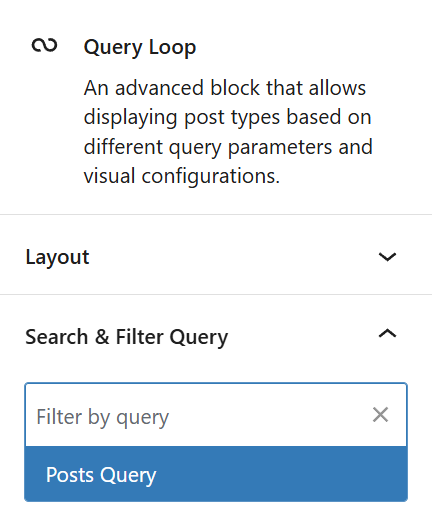
Search & Filter adds a new Query Selection dropdown to the Query Loop inspector. Choose your desired query from the dropdown or start typing to search by name.
Query Block Variations
Many plugins extend the query loop block and create their own variations. Our Auto-detect feature won’t work with those, but you can use the Search & Filter Query dropdown (pictured above) to connect them to a query.